How EdBid Works
Follow one purchase from start to finish at a made-up school, Hogwarts. Every screenshot is the real EdBid site.
A. The public site
Step 1
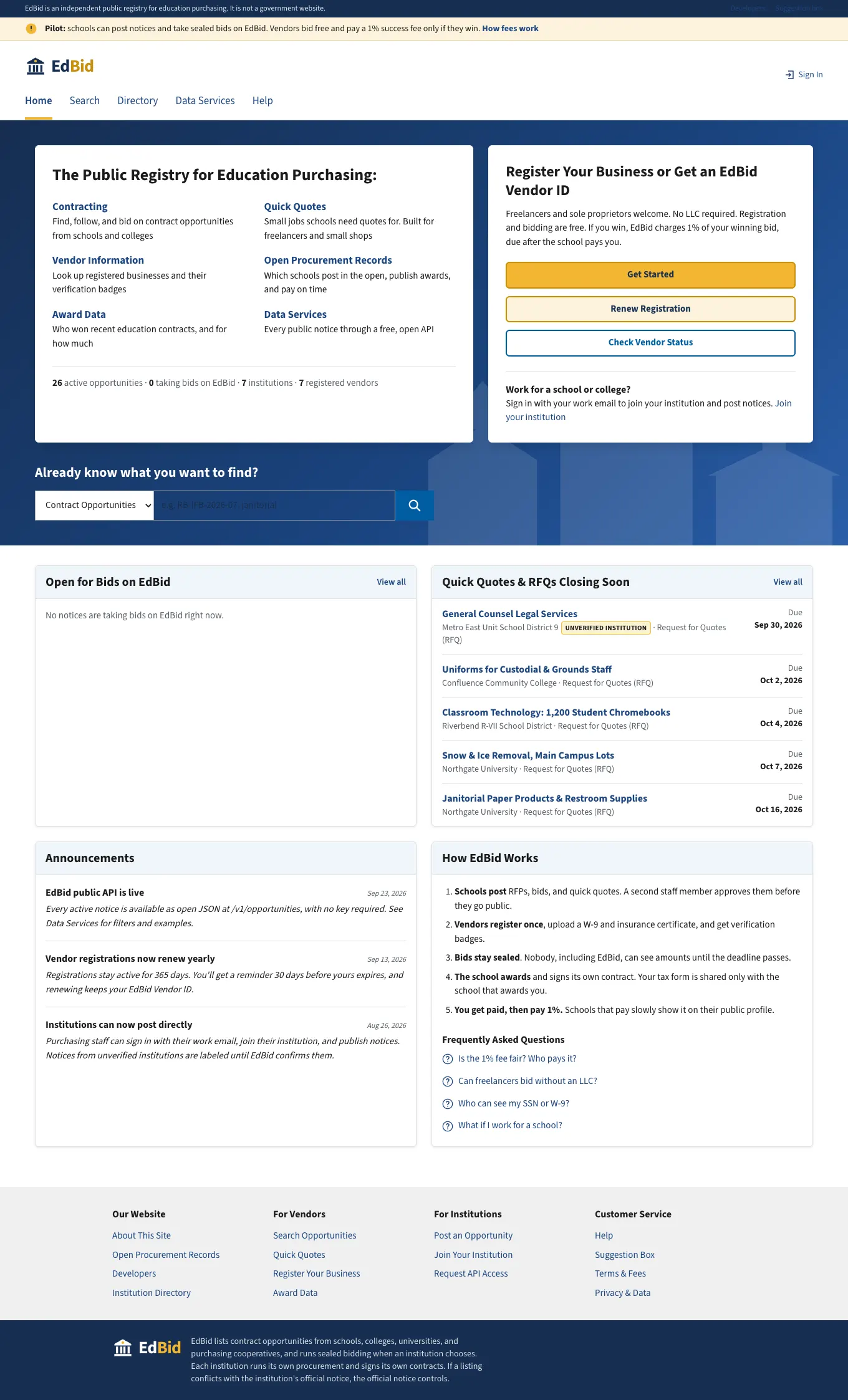
Home page
The public registry. Anyone can search without an account. The navy utility bar says plainly that EdBid is not a government site.
B. A school onboards
Step 2
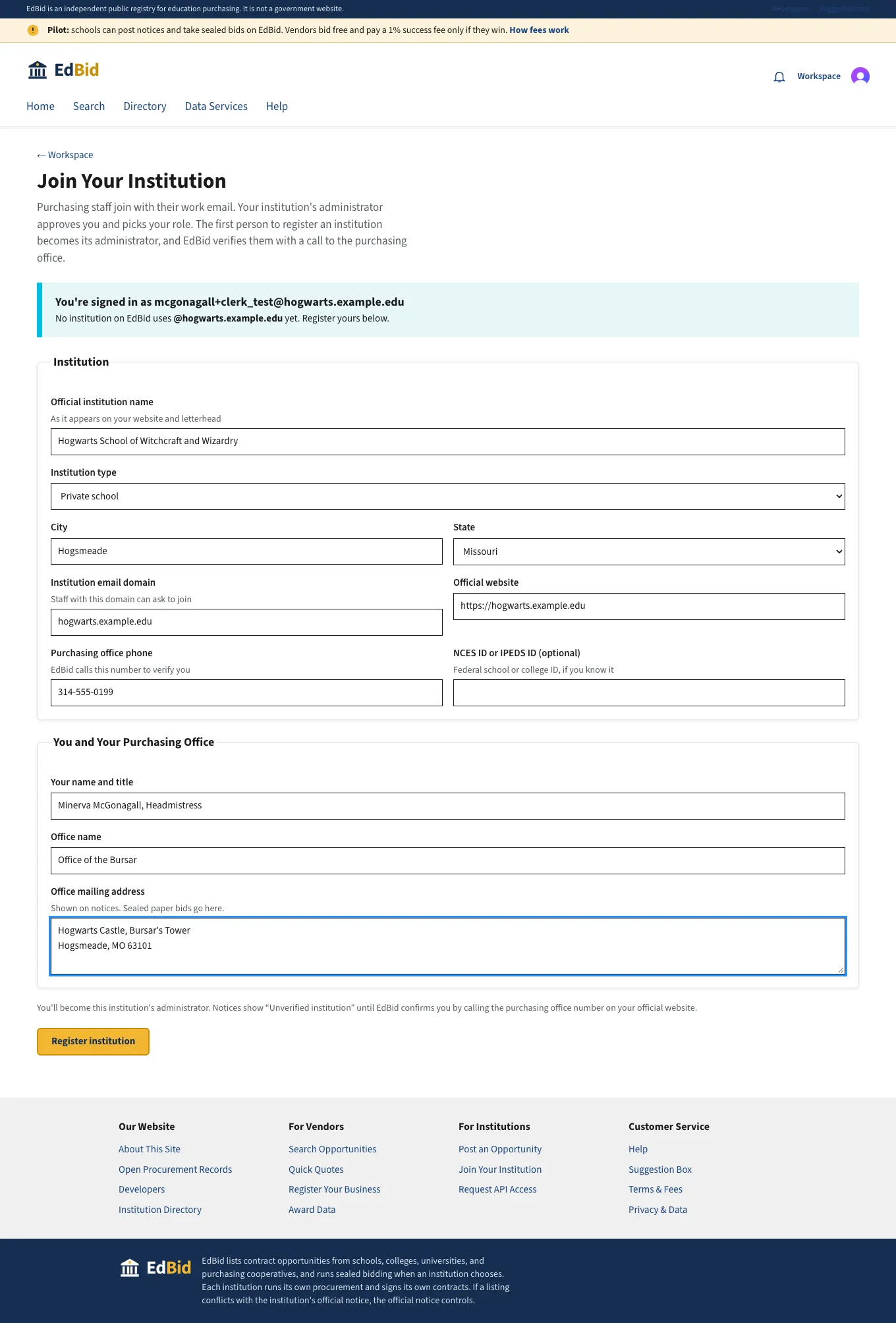
McGonagall registers Hogwarts
She signs in with her @hogwarts.example.edu work email. Personal emails (Gmail, Outlook) are refused. The email domain must match the domain she registers. She becomes the institution's admin.
Step 3
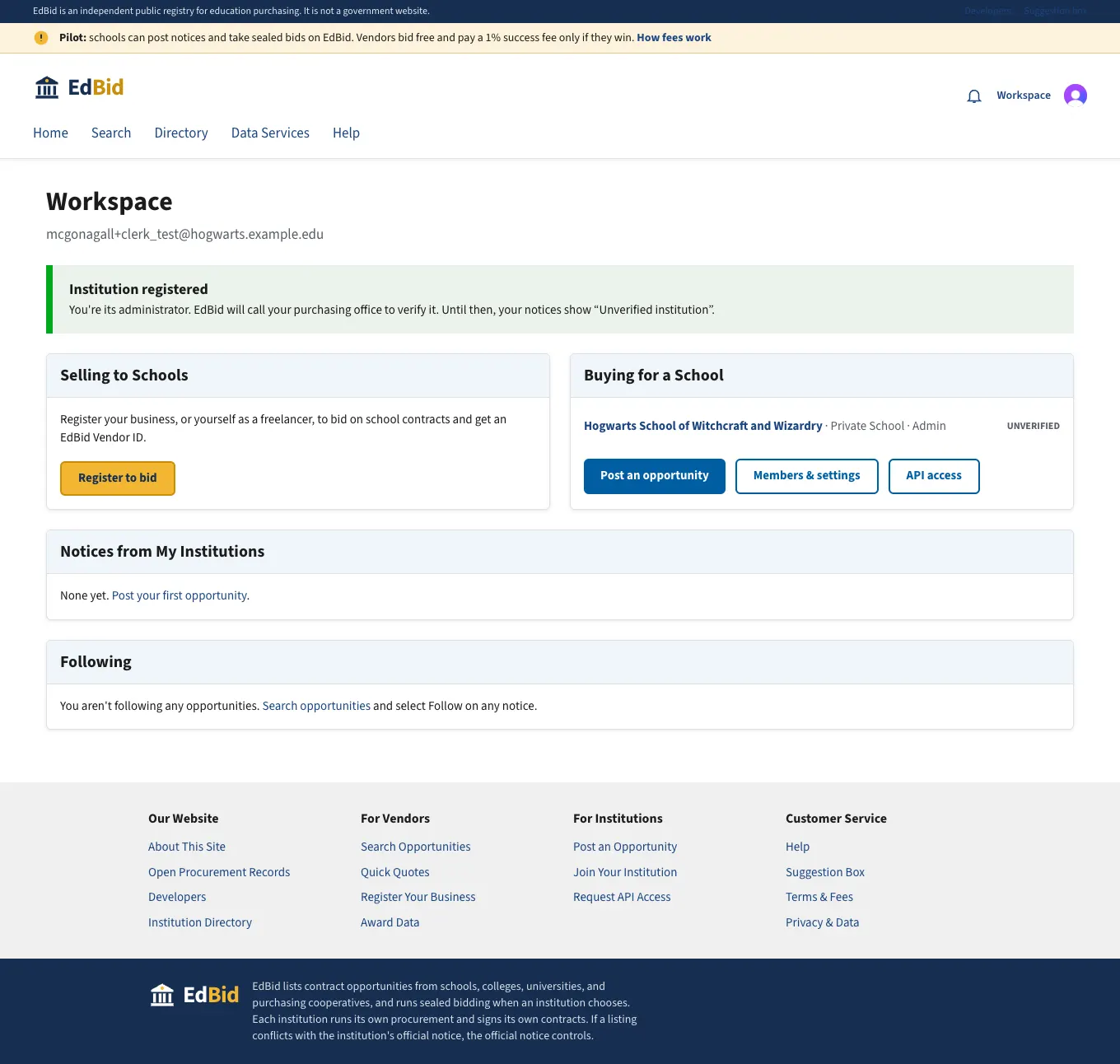
Registered, awaiting verification
Hogwarts exists but shows "Unverified institution" on every notice until EdBid staff verify it by phone.
Step 4
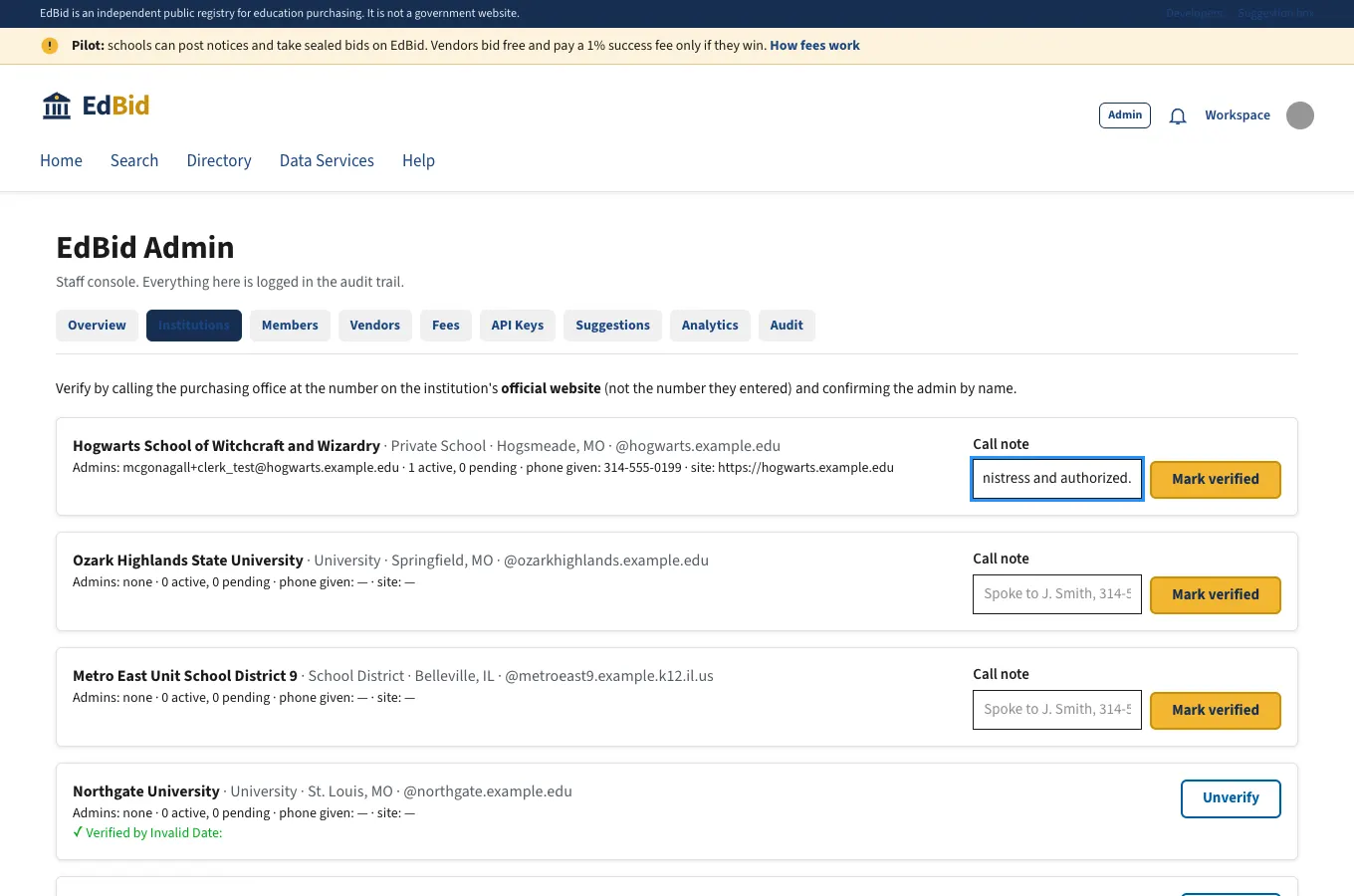
EdBid staff verify the school
Back office: EdBid calls the number on the school's official website (not the one typed in) and records who confirmed it. Verification unlocks the verified badge and API access.
Step 5
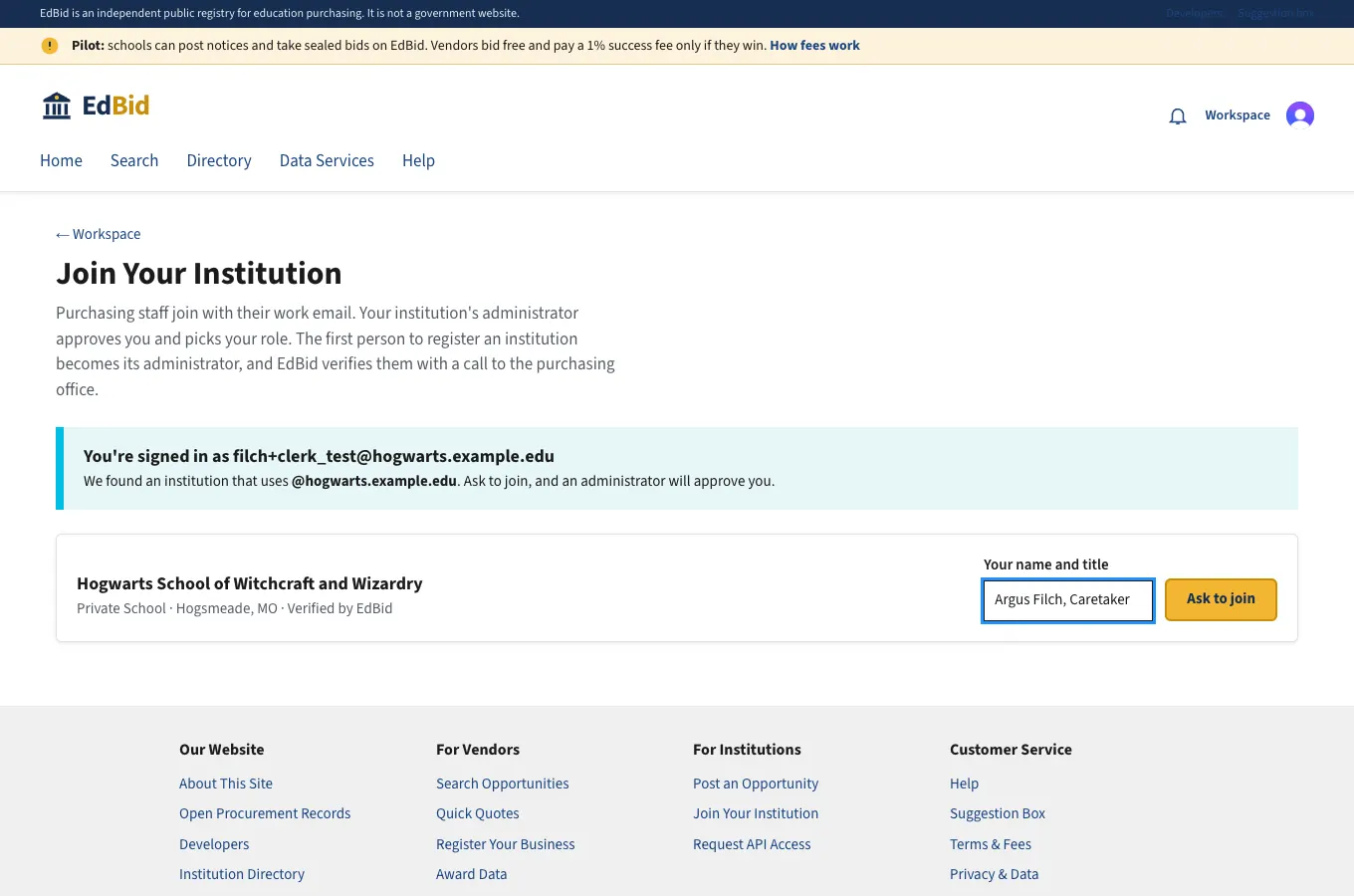
Filch asks to join
Other staff find Hogwarts automatically from their email domain. They can only ask to join. They can't post until an admin approves them.
Step 6
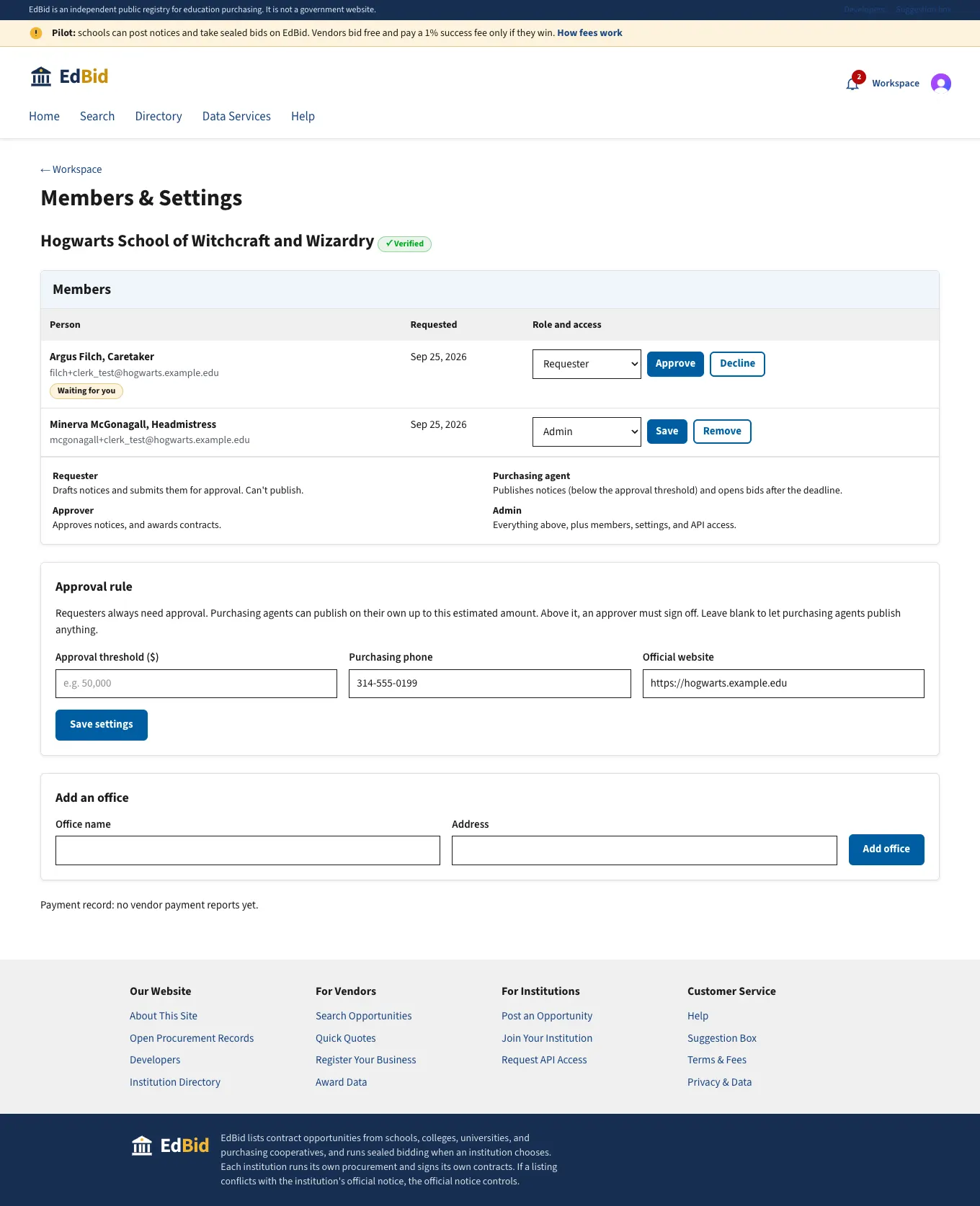
McGonagall approves Filch as a requester
Roles set what staff can do. Requesters draft. Purchasing agents publish up to a threshold. Approvers approve and award. Admins manage everything.
C. Posting a notice
Step 7
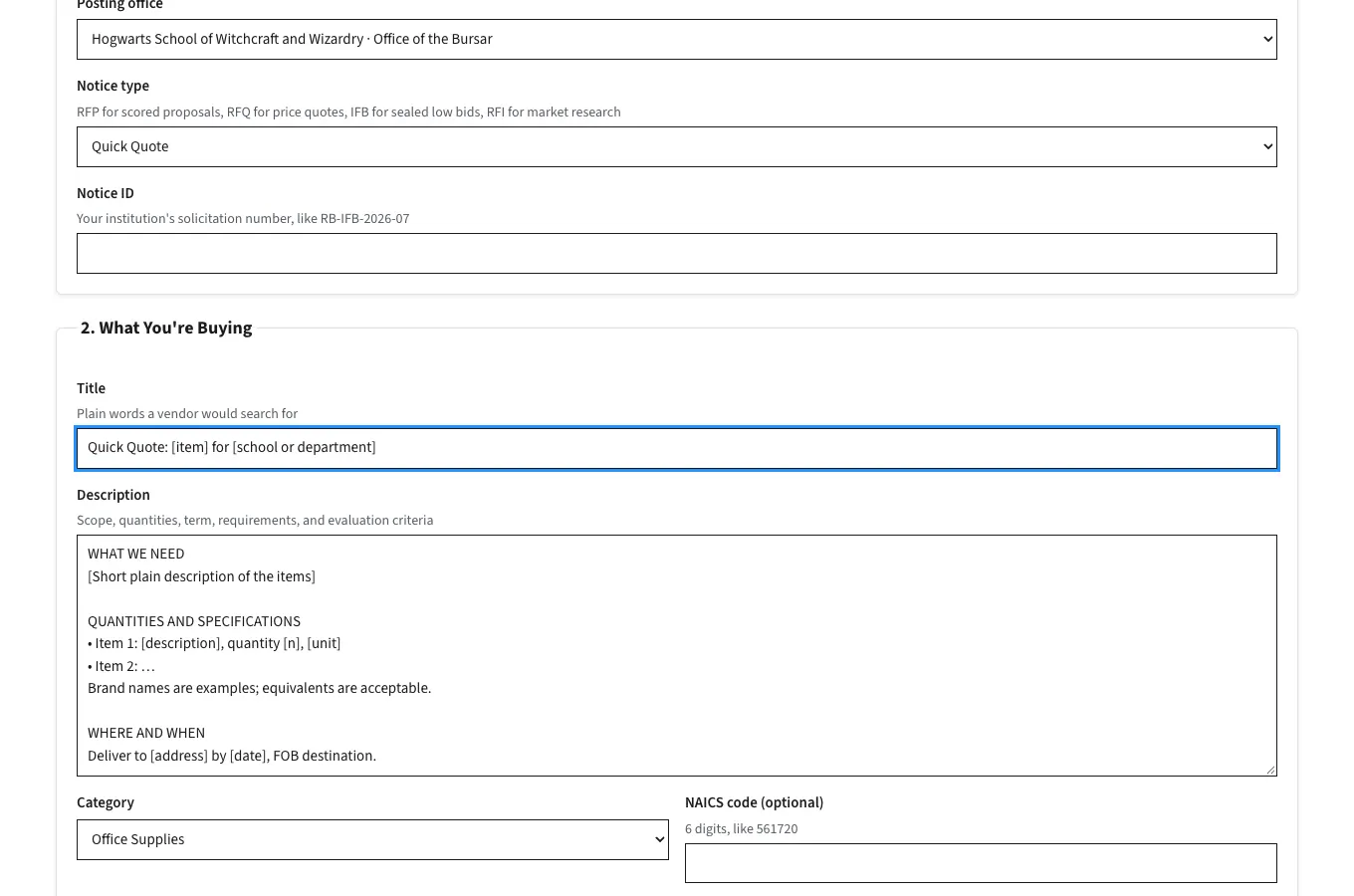
Start from a template
Templates fill in one standard layout: What we need, Quantities, Where and when, Requirements, How we choose, Questions. Every notice reads the same way. SAM.gov leaves this as free text.
Step 8
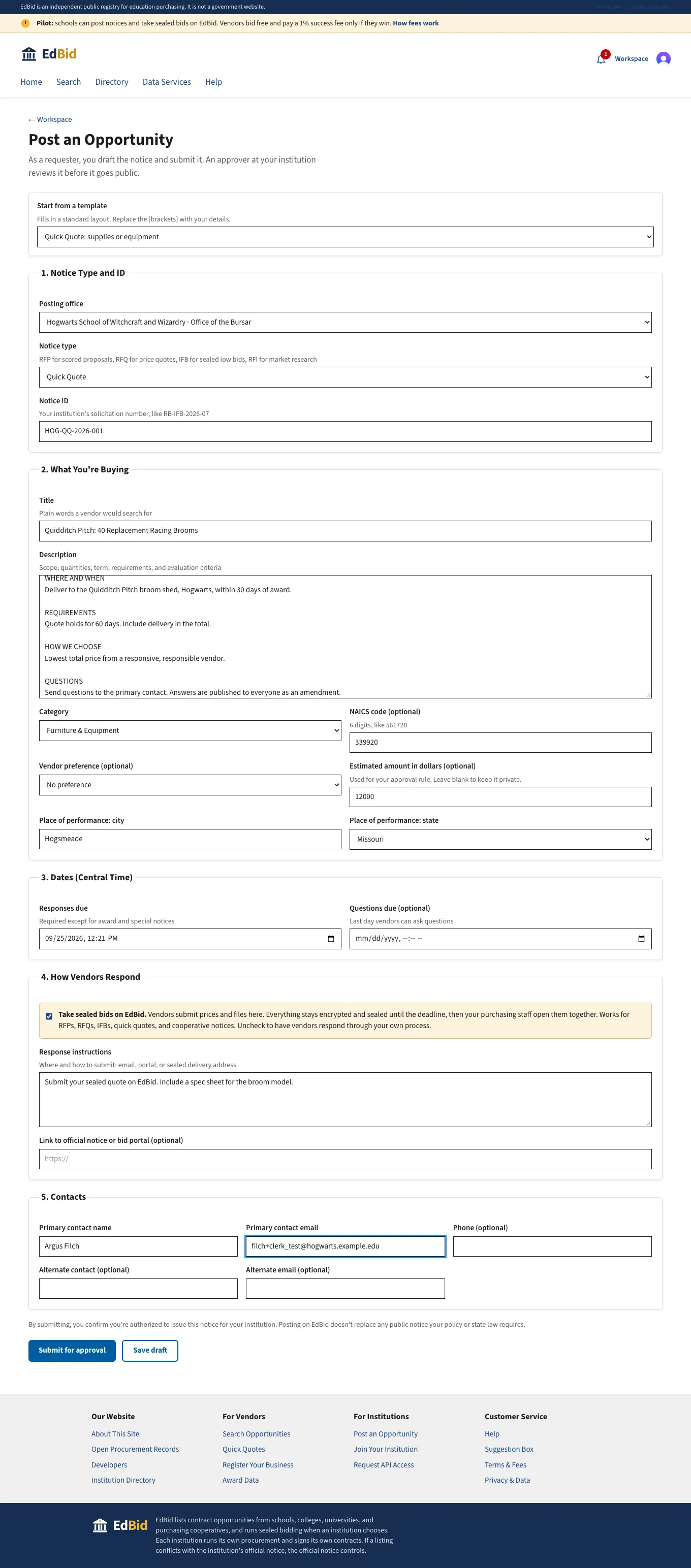
Filch drafts a quick quote
A guided form. "Take sealed bids on EdBid" is on by default. The estimated amount ($12,000) is above Hogwarts' $10,000 threshold, so it needs approval anyway, and Filch is a requester.
Step 9
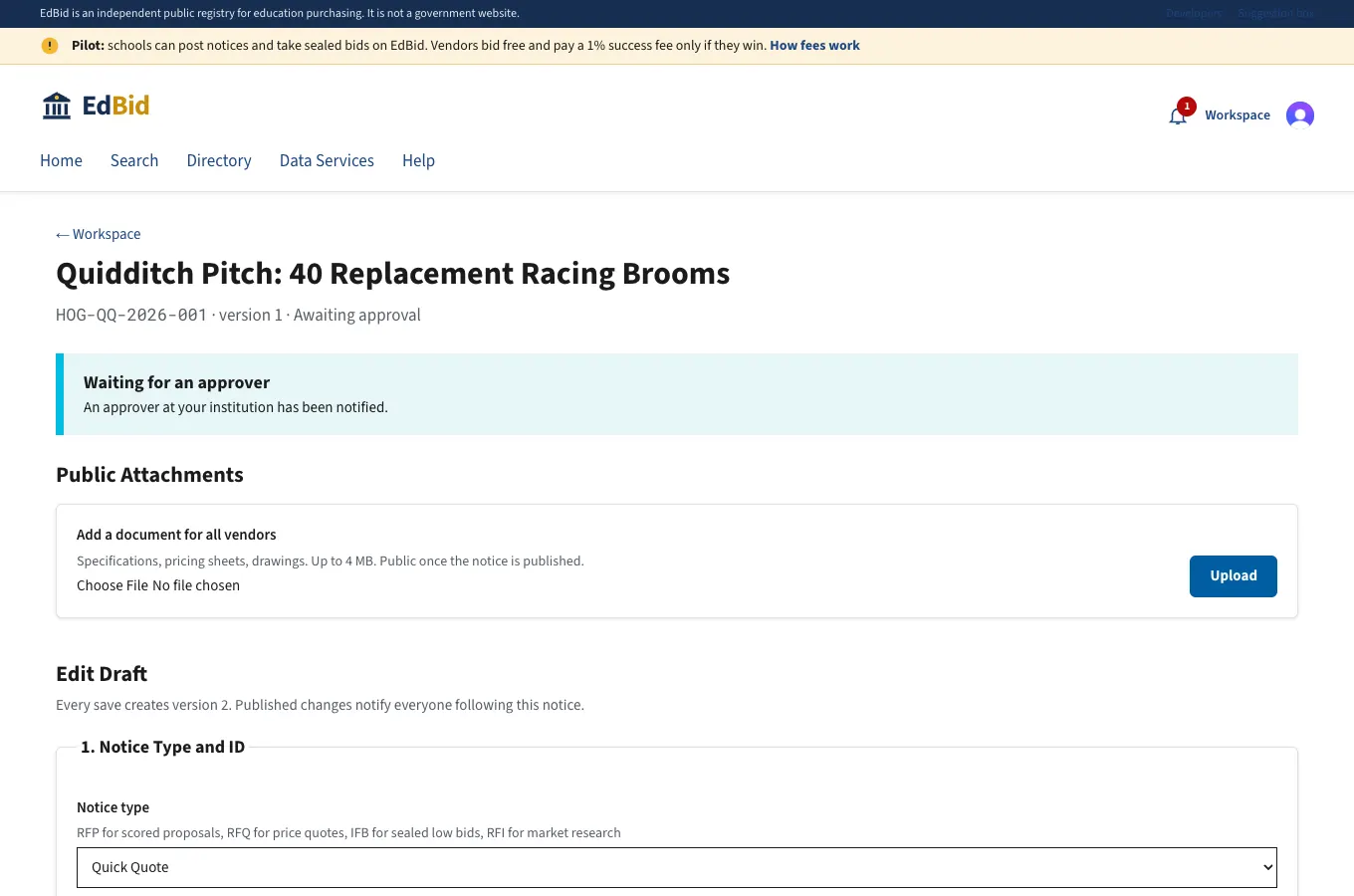
Waiting for an approver
The notice exists but the public can't see it. It returns 404 on the public site and API. Approvers were notified.
Step 10
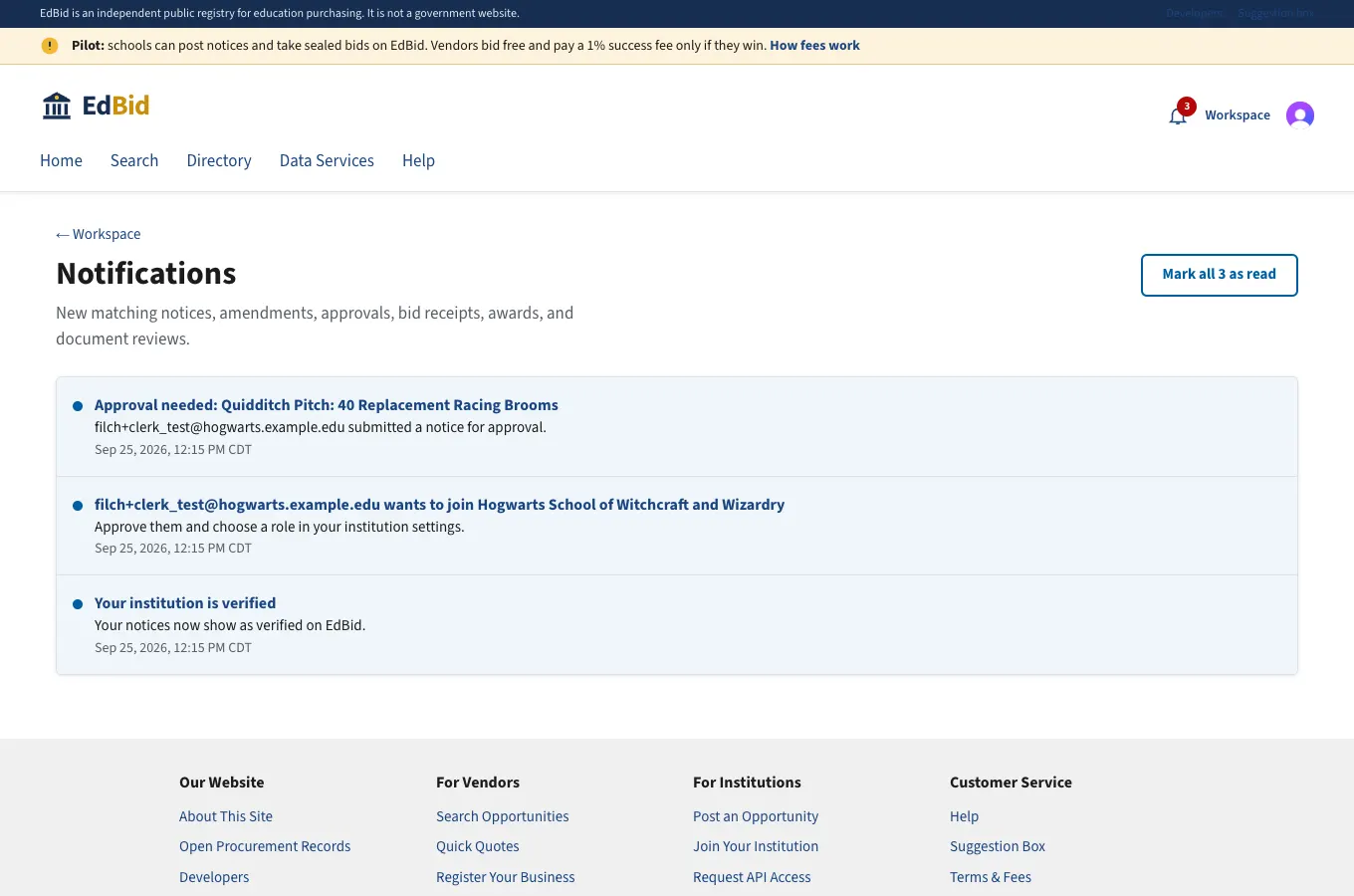
McGonagall is notified
In-app notifications (plus email once Resend is connected).
Step 11
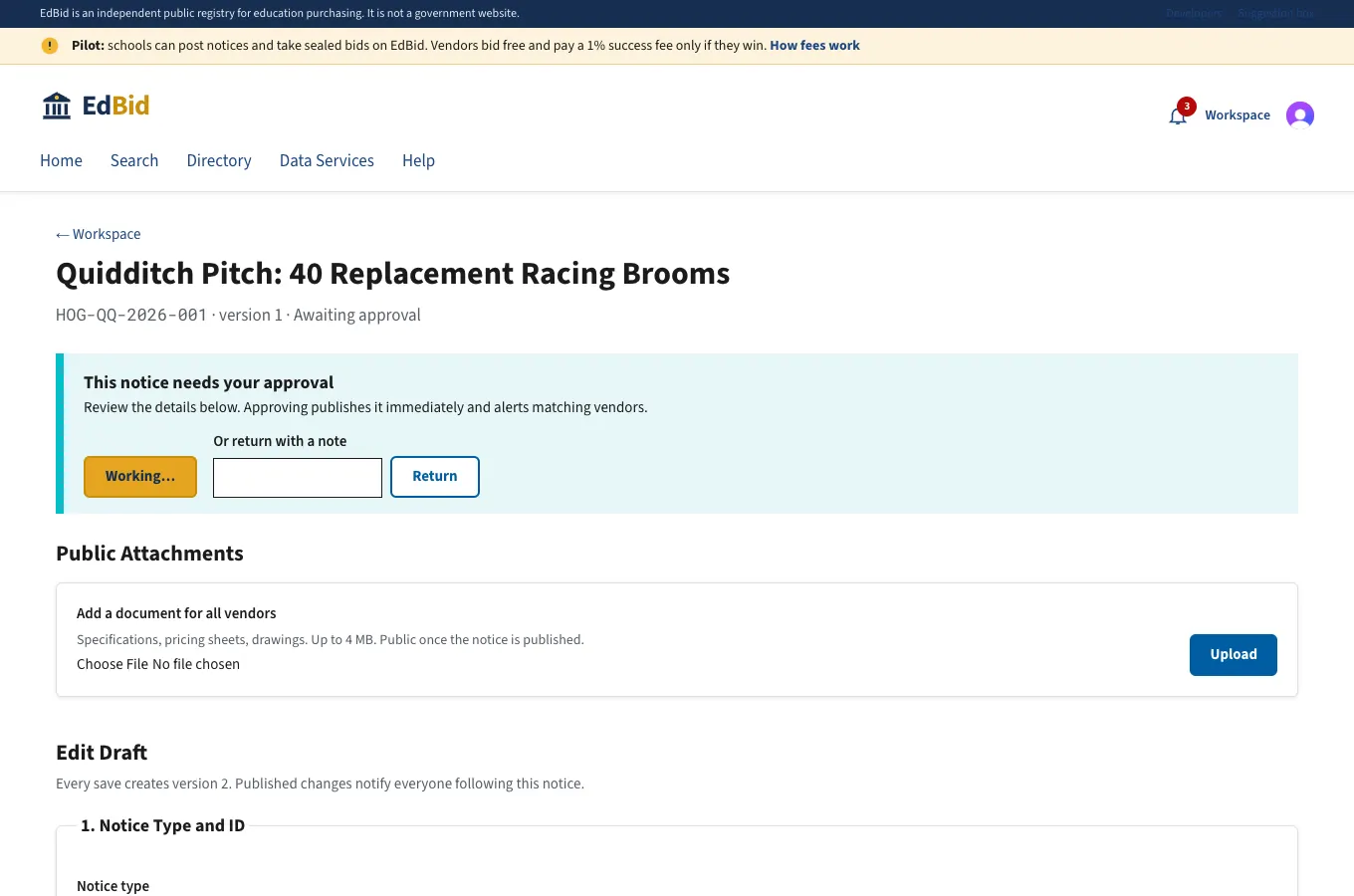
Approved and live
Approval publishes the notice, records who approved it in the version history, and alerts every vendor whose NAICS codes match.
Step 12
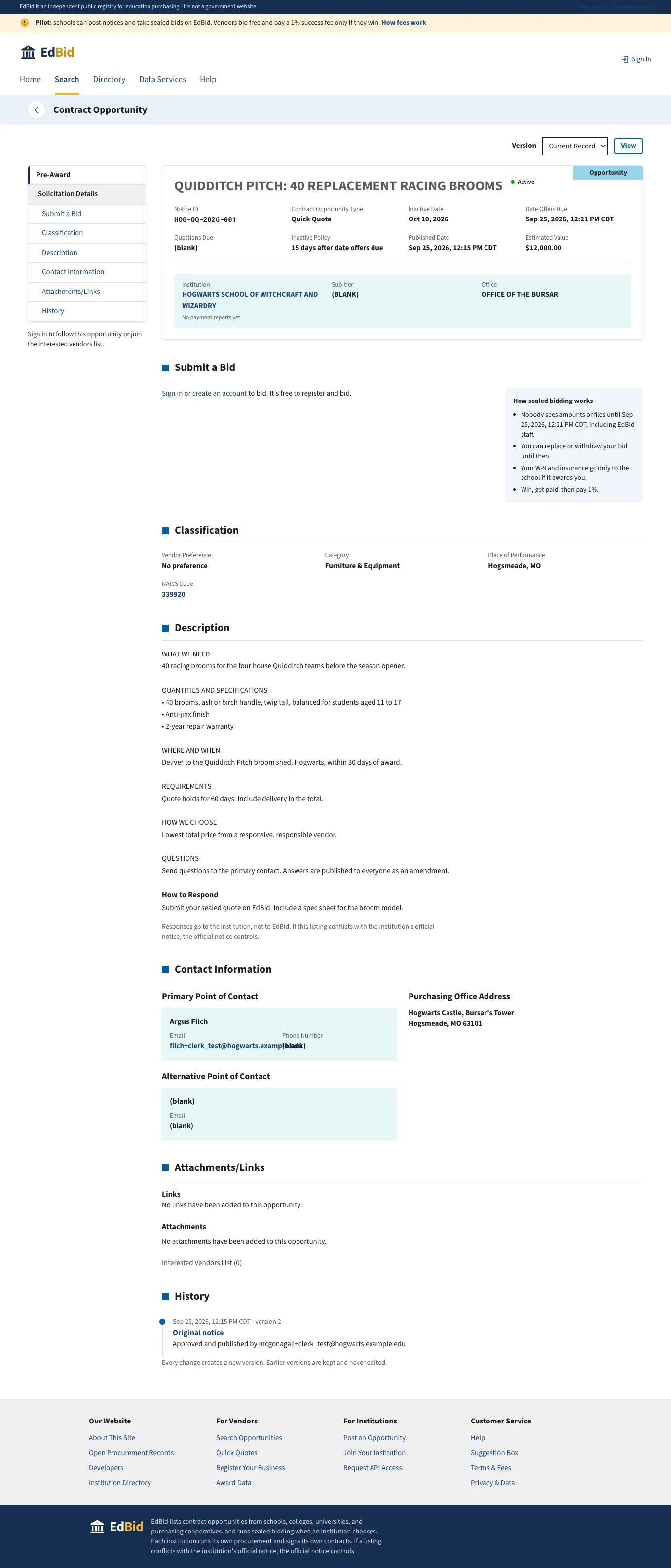
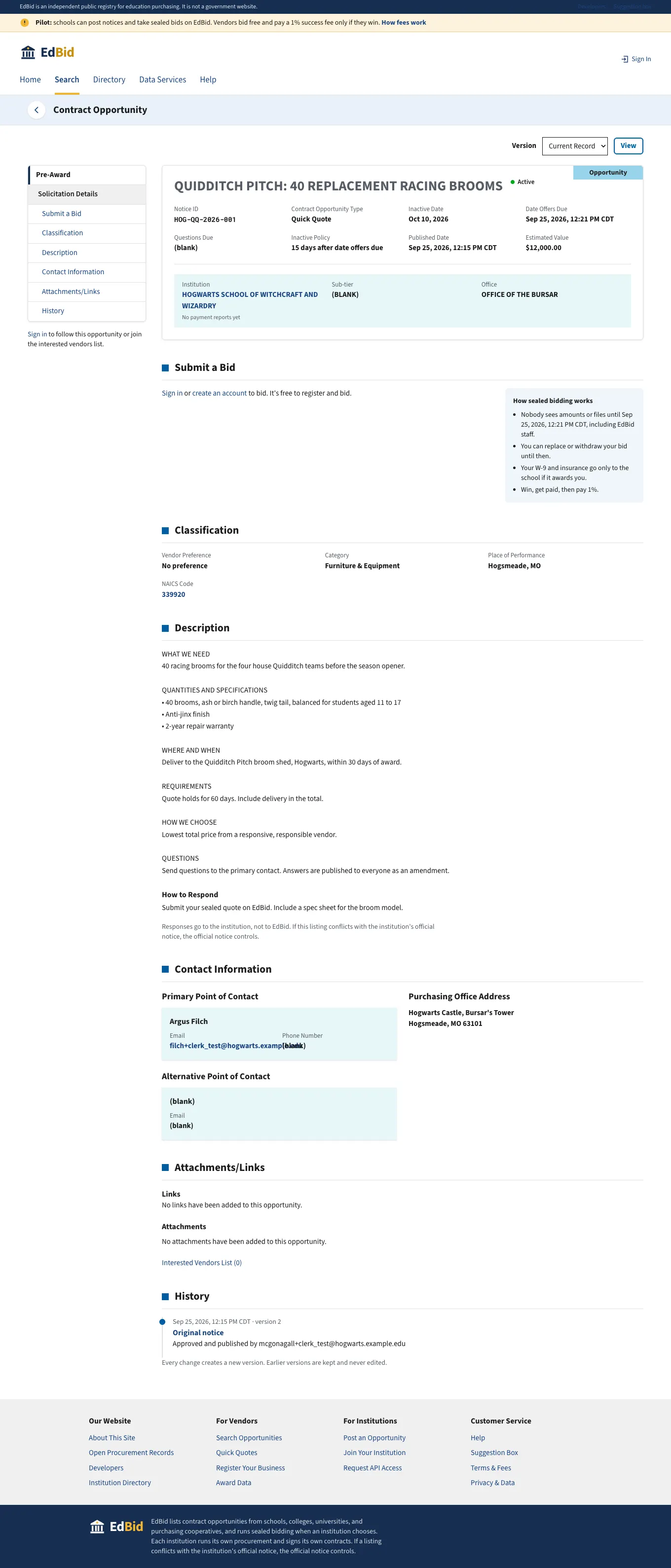
The public notice
Same layout as SAM.gov's notice page, plus a Submit a Bid section and the school's payment record.
D. Vendors register
Step 13
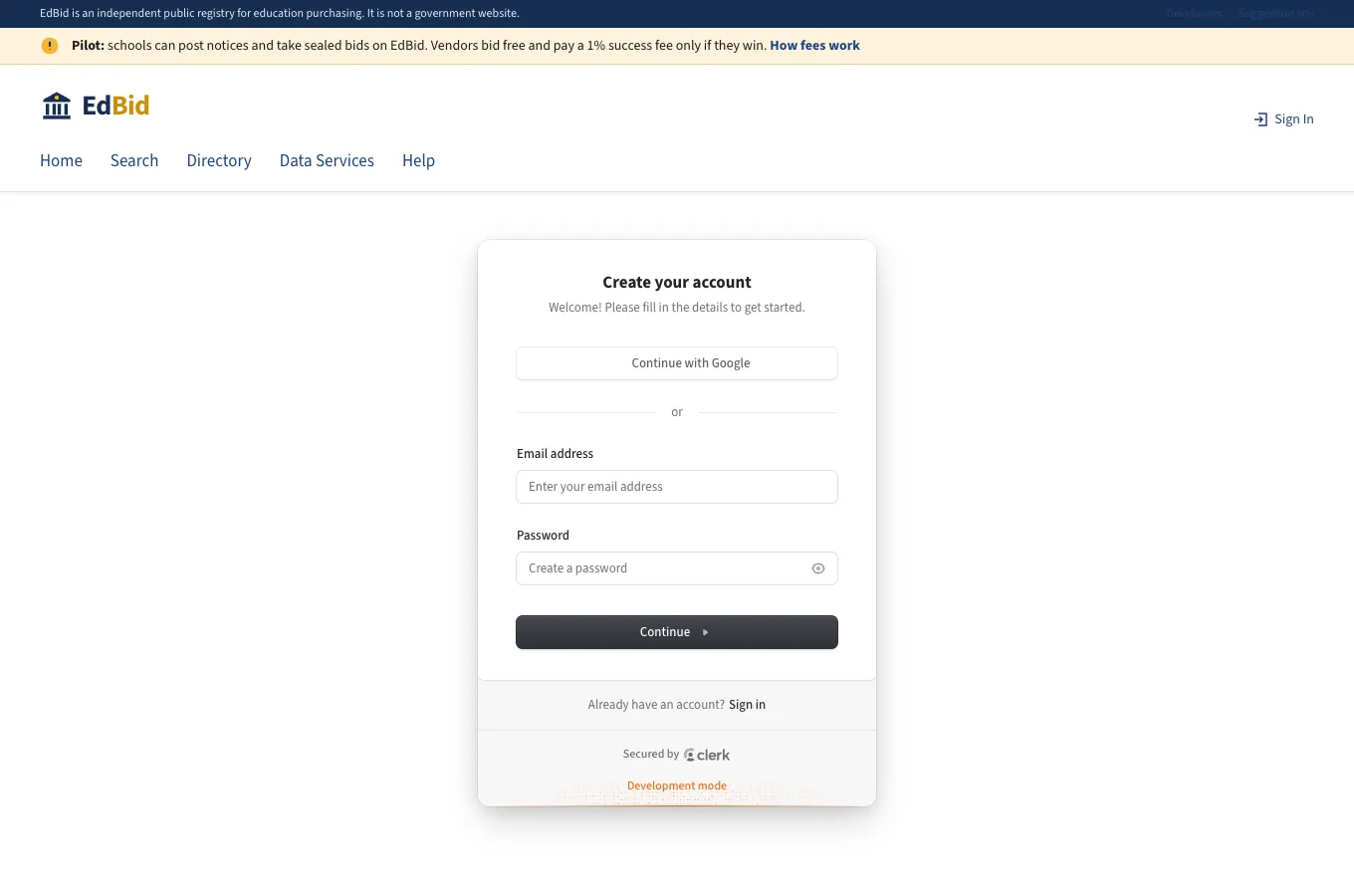
Vendor sign-up
Sign-up is handled by Clerk: email, verification code, optional Google or Microsoft. EdBid never stores passwords.
Step 14
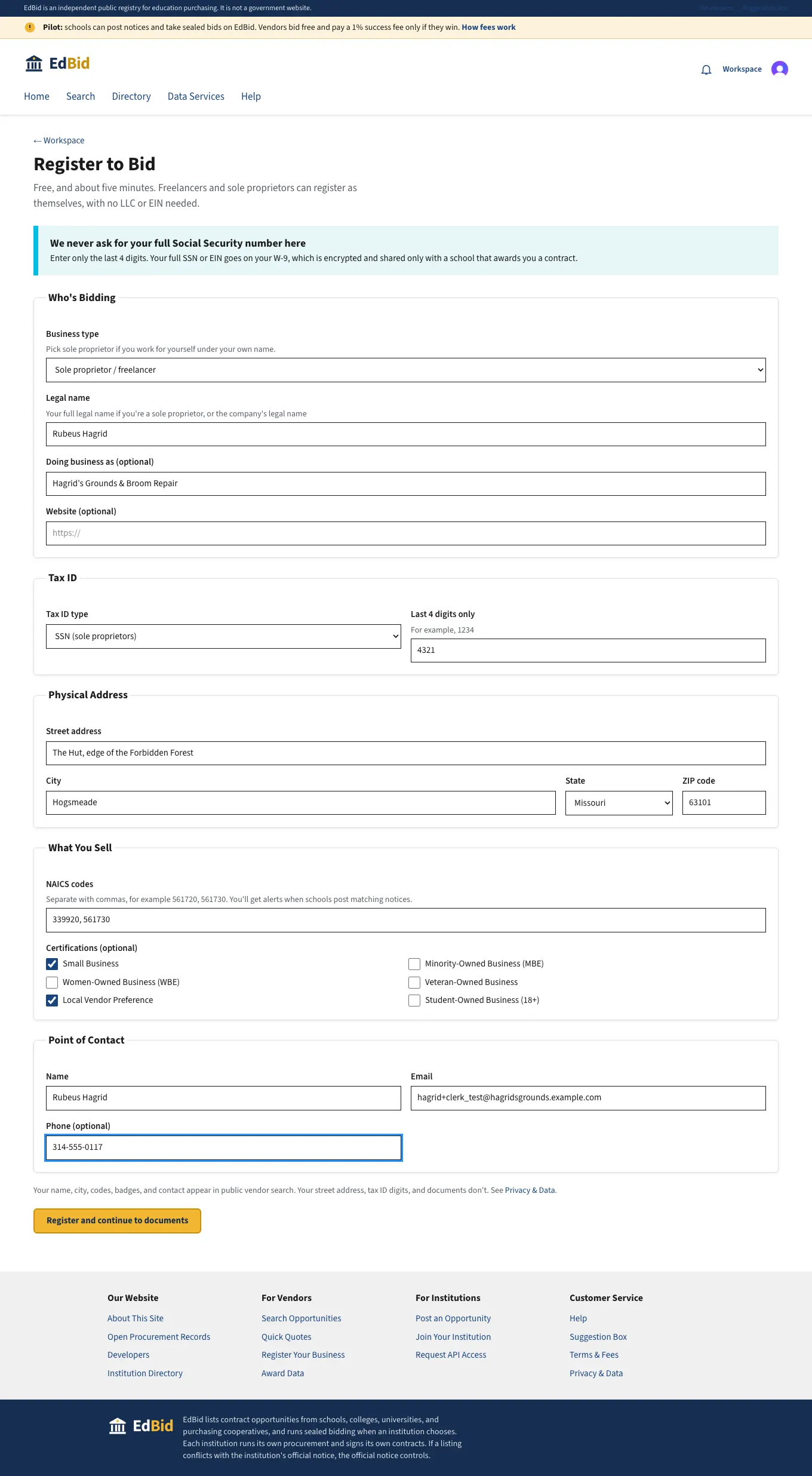
Hagrid registers as a freelancer
A sole proprietor registers under his own name. No LLC, no EIN, and no full SSN: only the last 4 digits. SAM.gov requires an entity registration that can take weeks.
Step 15
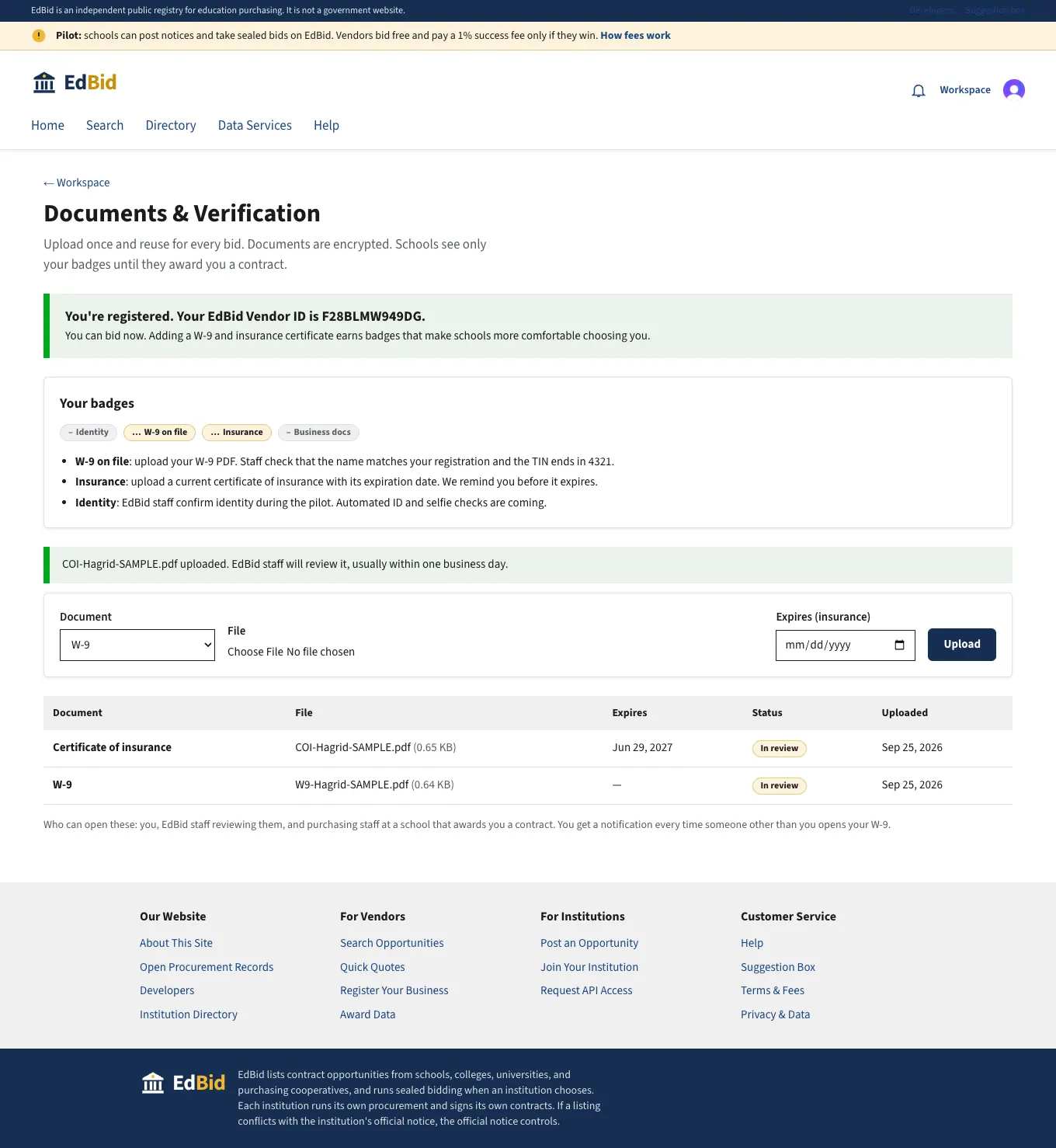
W-9 and insurance uploaded
Files are encrypted before storage. They show "In review" until EdBid staff check them. Schools see only the resulting badges until they award him.
Step 16
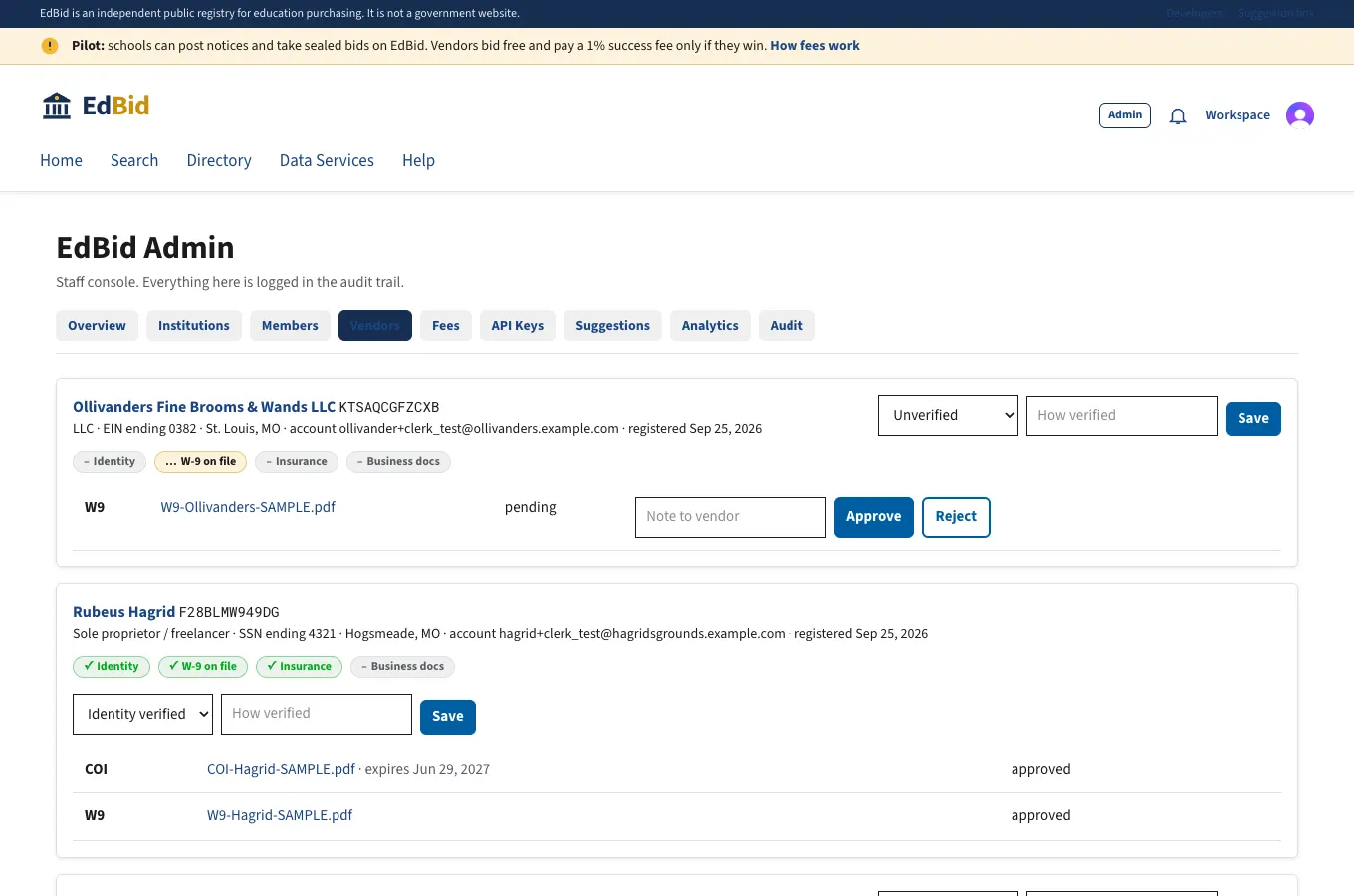
EdBid staff review vendor documents
Back office: staff open the encrypted W-9 (the access is logged), check that the name and last 4 digits match, and approve. Badges update right away.
E. Sealed bidding
Step 17
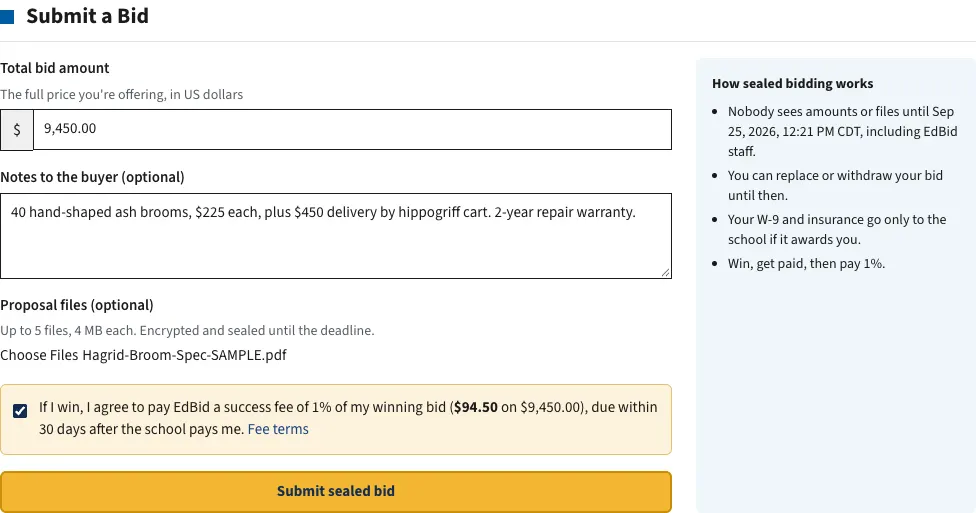
Hagrid prepares his bid
The fee is shown in dollars before he submits: 1% of $9,450 = $94.50, due only after Hogwarts pays him. He must tick the box to agree.
Step 18
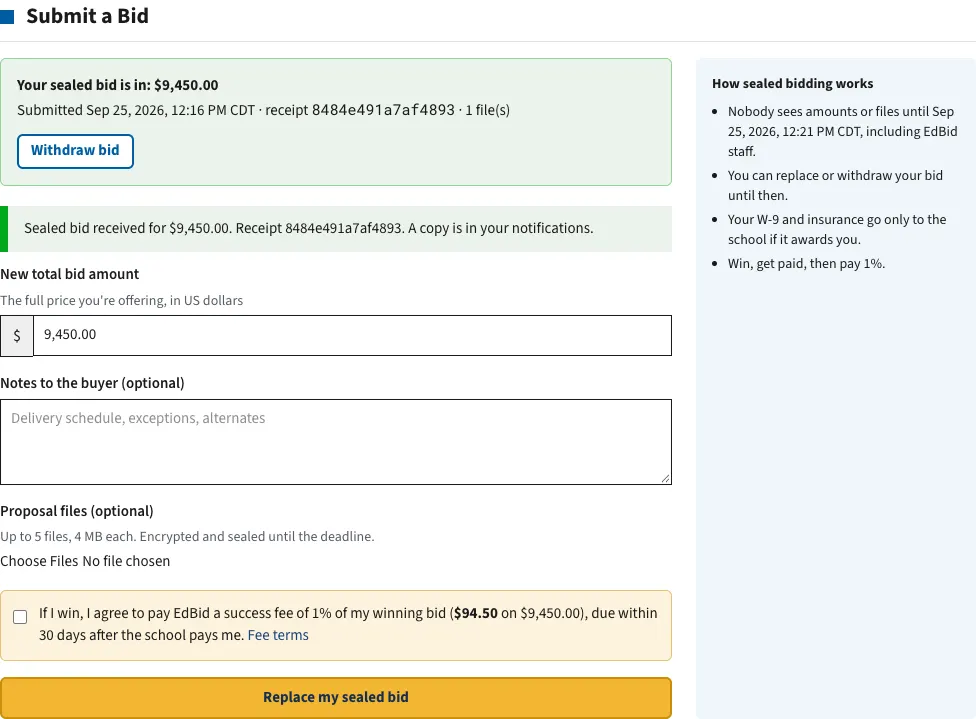
Bid receipt
A SHA-256 receipt proves exactly what was submitted and when. He can replace or withdraw it until the deadline.
Step 19
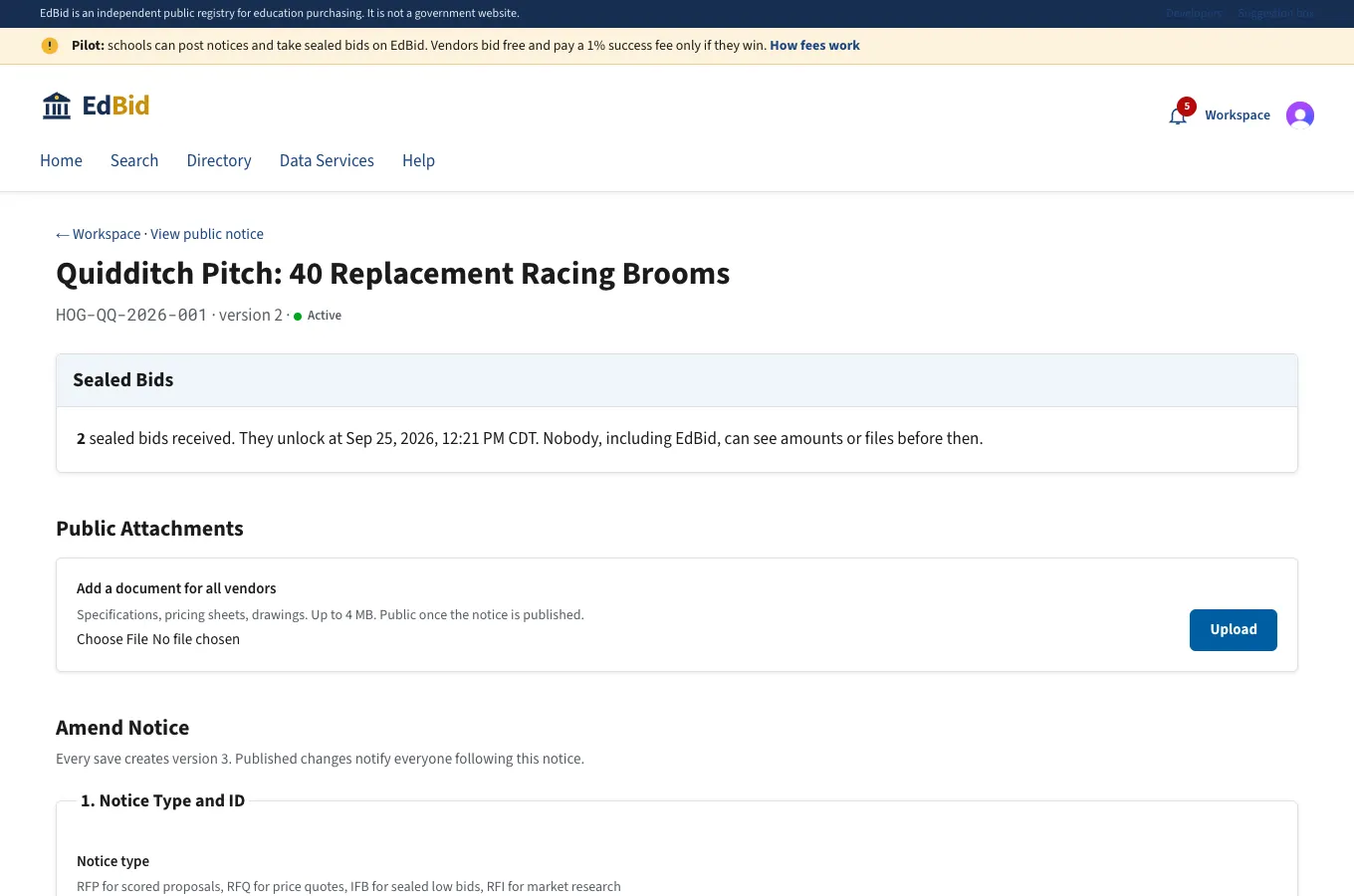
The school sees only a count
Before the deadline, Hogwarts sees "2 sealed bids" with no names, amounts, or files. The API enforces this, not just the screen: files are encrypted and requests are refused until the deadline.
F. Opening and award
Step 20
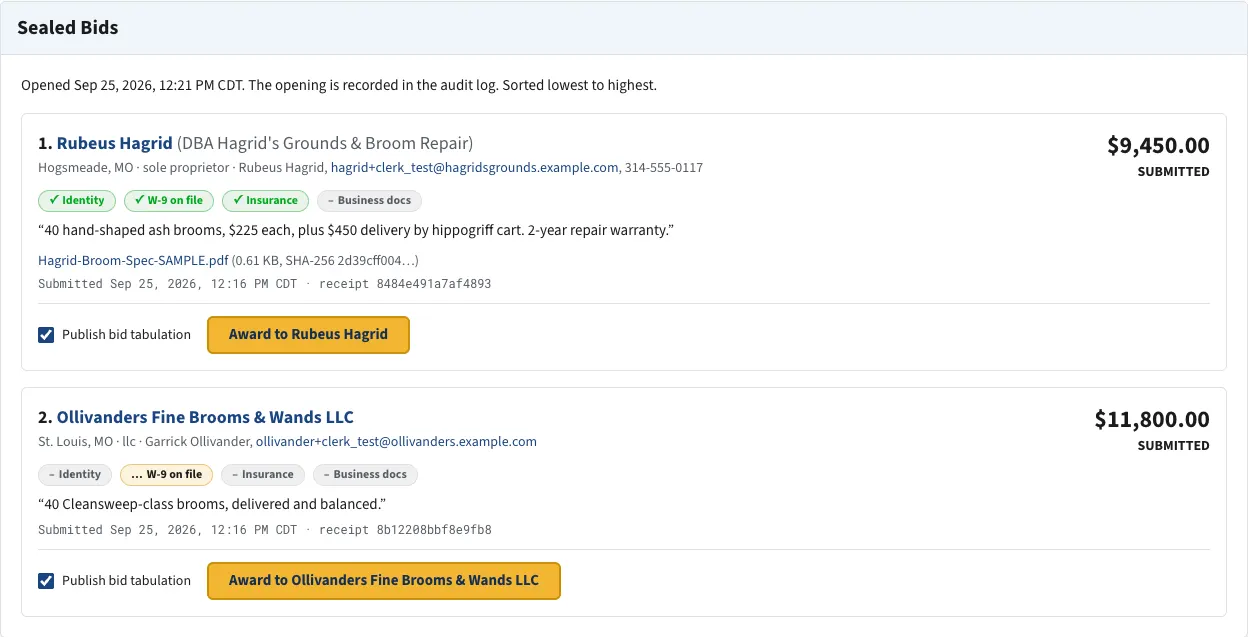
Bids open at the deadline
The first view after the deadline is the official bid opening, recorded in the audit log. Bids are sorted lowest first, with each vendor's verification badges and files.
Step 21
Award, and the winner's documents unlock
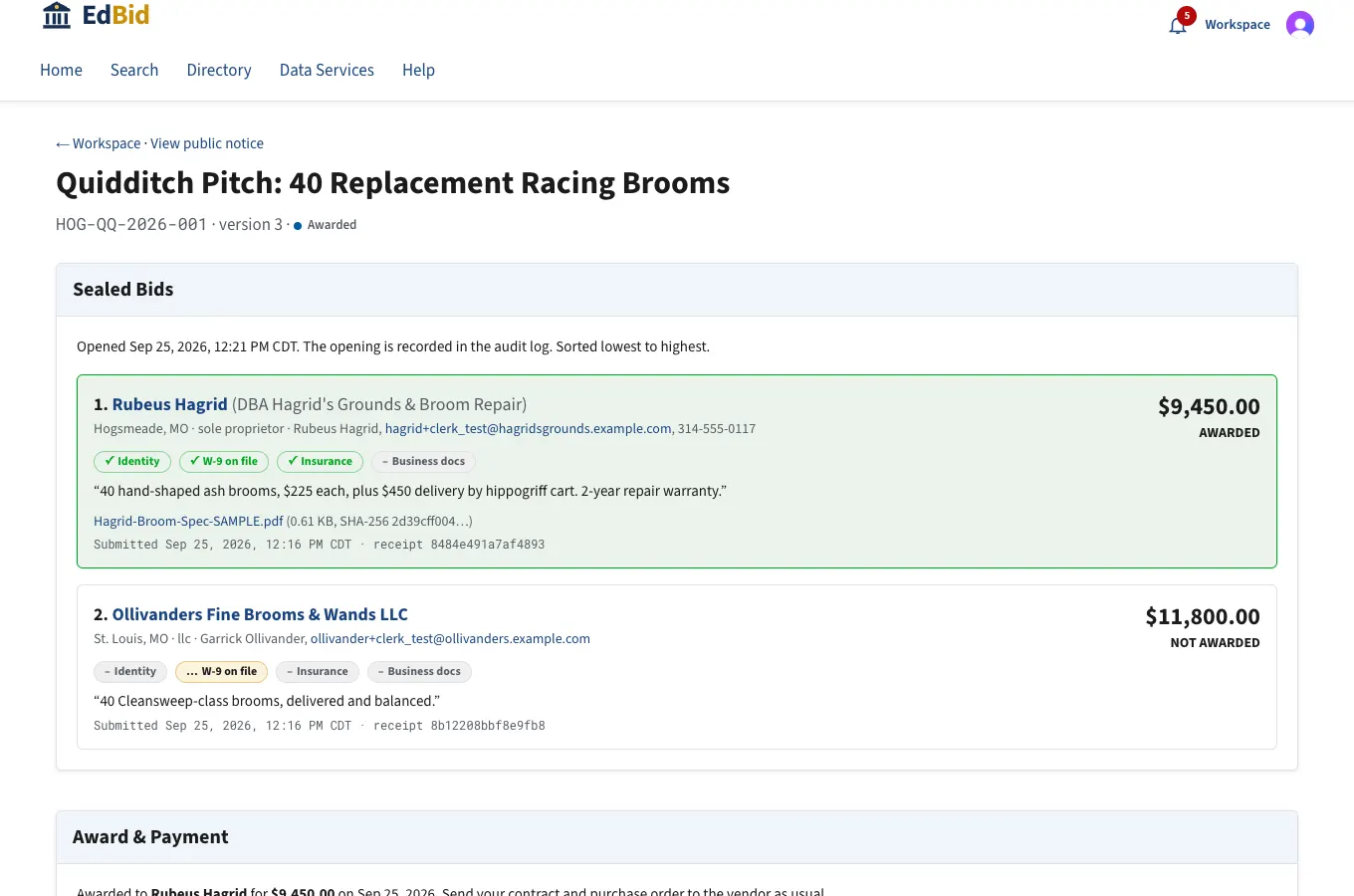
Only now can Hogwarts open Hagrid's W-9 and insurance certificate. Ollivanders is notified it didn't win. EdBid's $94.50 fee is recorded as accrued.
Step 24
Public award and bid tabulation
Like SAM.gov award notices, plus the full bid tabulation, if the school chooses to publish it.
G. Digital contract
Step 22
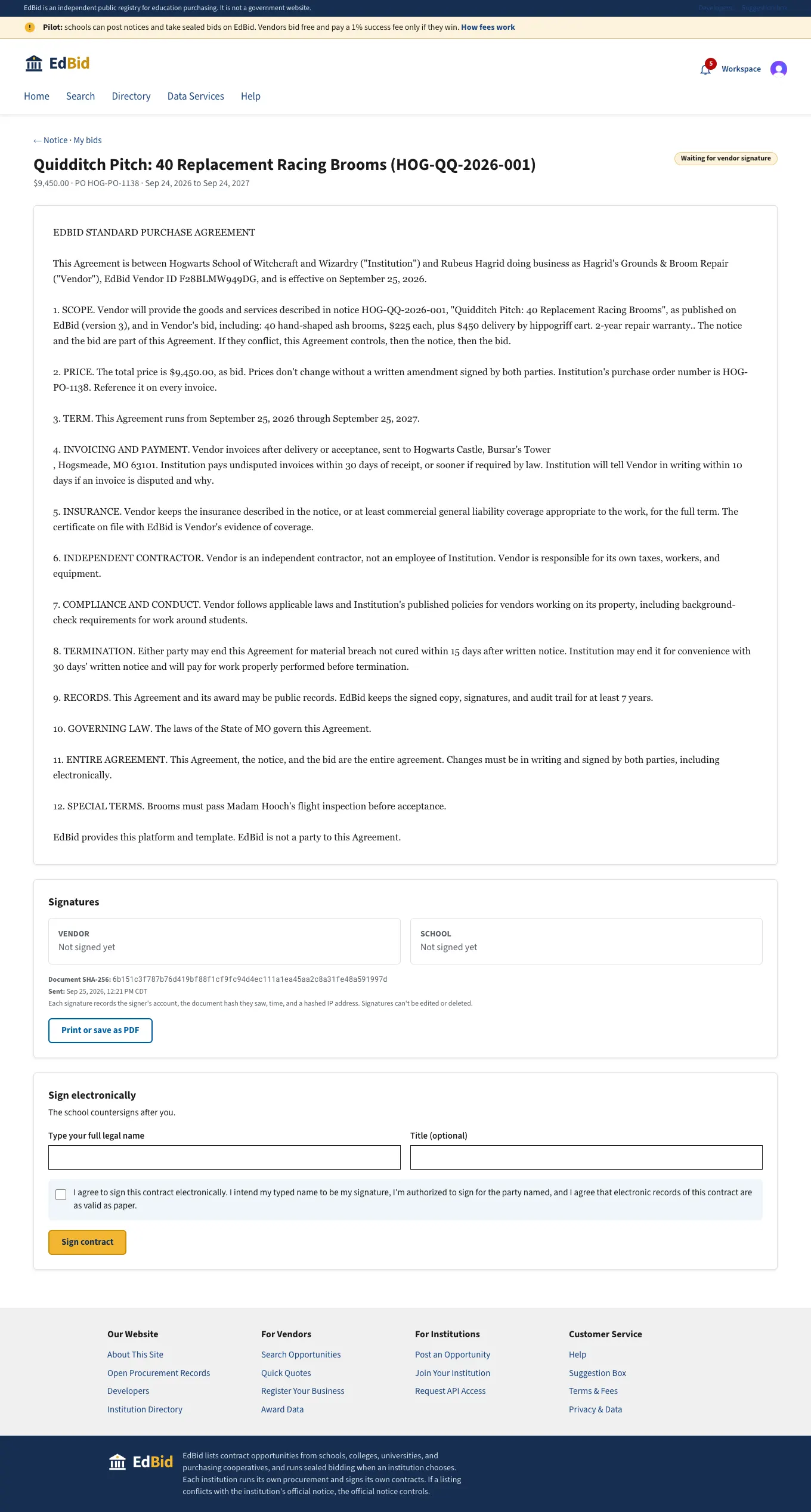
Hagrid reviews the generated contract
EdBid writes a standard purchase agreement from the notice, the winning bid, the PO number, and the dates. The school could upload its own PDF instead. The document's SHA-256 hash is what gets signed.
Step 23
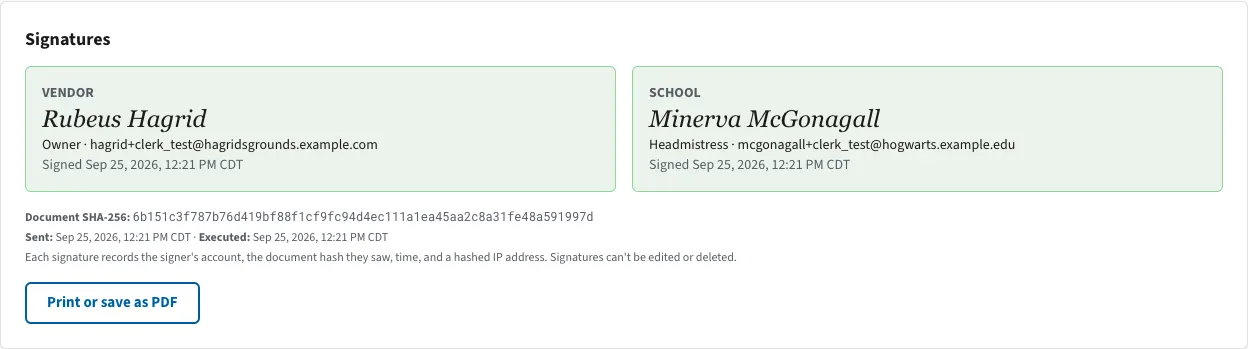
Fully executed
The vendor signs first, then an approver countersigns. Each signature records the account, the document hash, the time, and a hashed IP address, with electronic-signature consent (ESIGN Act / UETA). Signatures can't be edited or deleted. Print or save as PDF for the school's files.
H. Getting paid
Step 25
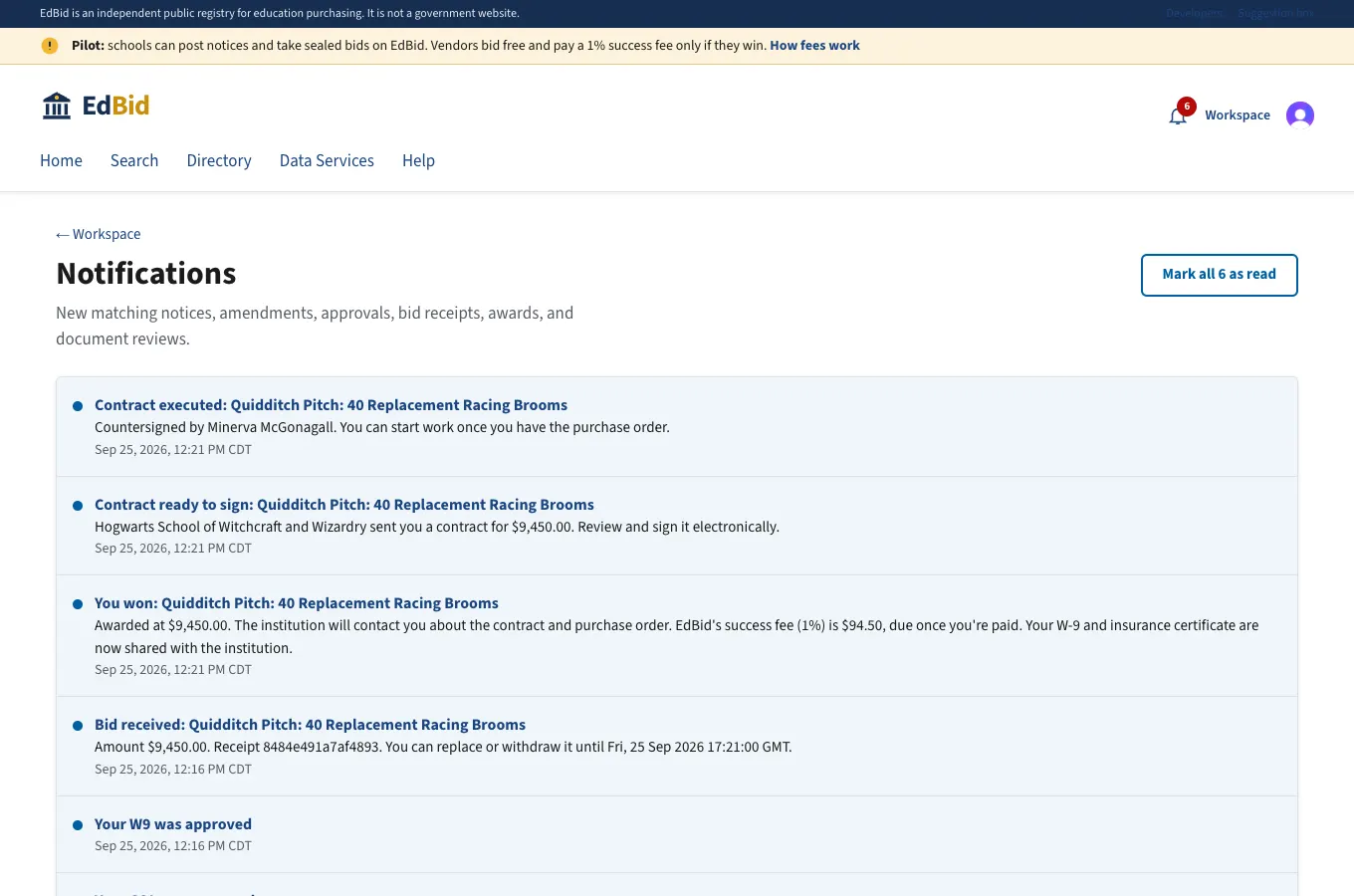
Hagrid's notifications
He's told he won, what the fee will be, and that Hogwarts opened his W-9, with who opened it and when.
Step 26
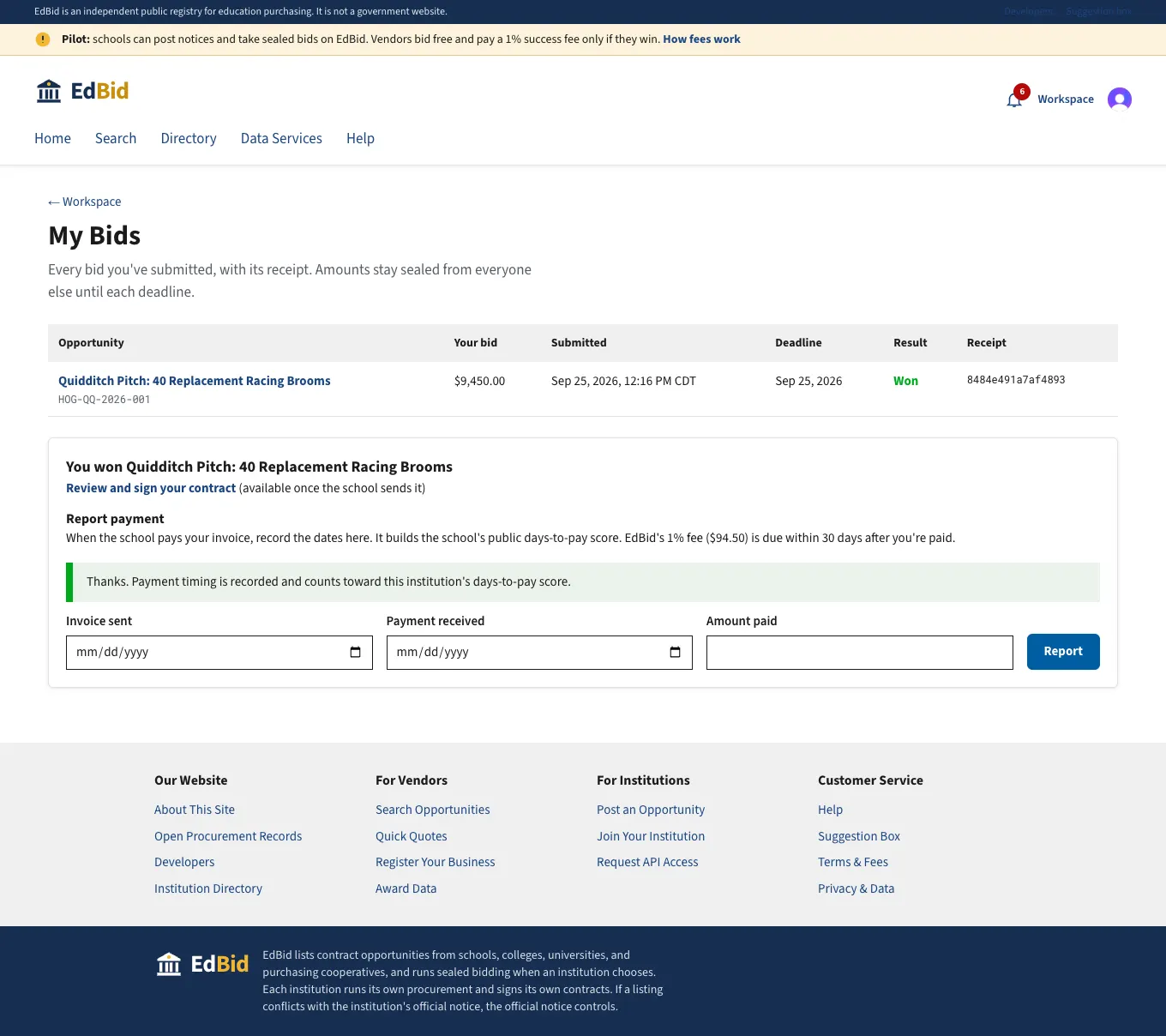
Hagrid reports he was paid in 19 days
Payment reports build each school's public days-to-pay score. They also make EdBid's fee due.
Step 27
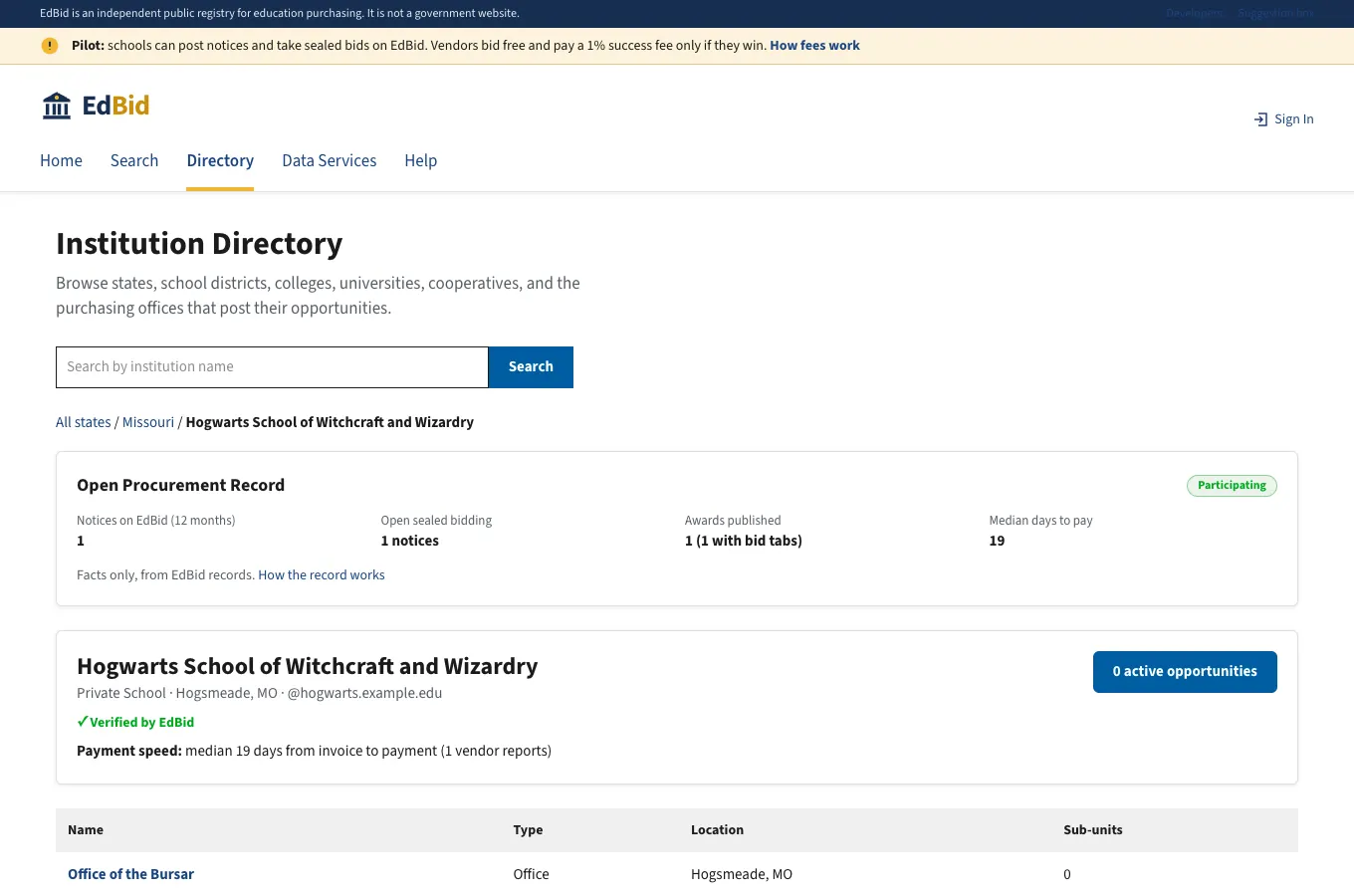
Hogwarts' public profile
The Open Procurement Record: participation level, notices posted, awards published, and median days to pay. The same facts appear for every school, joined or not.
Step 28
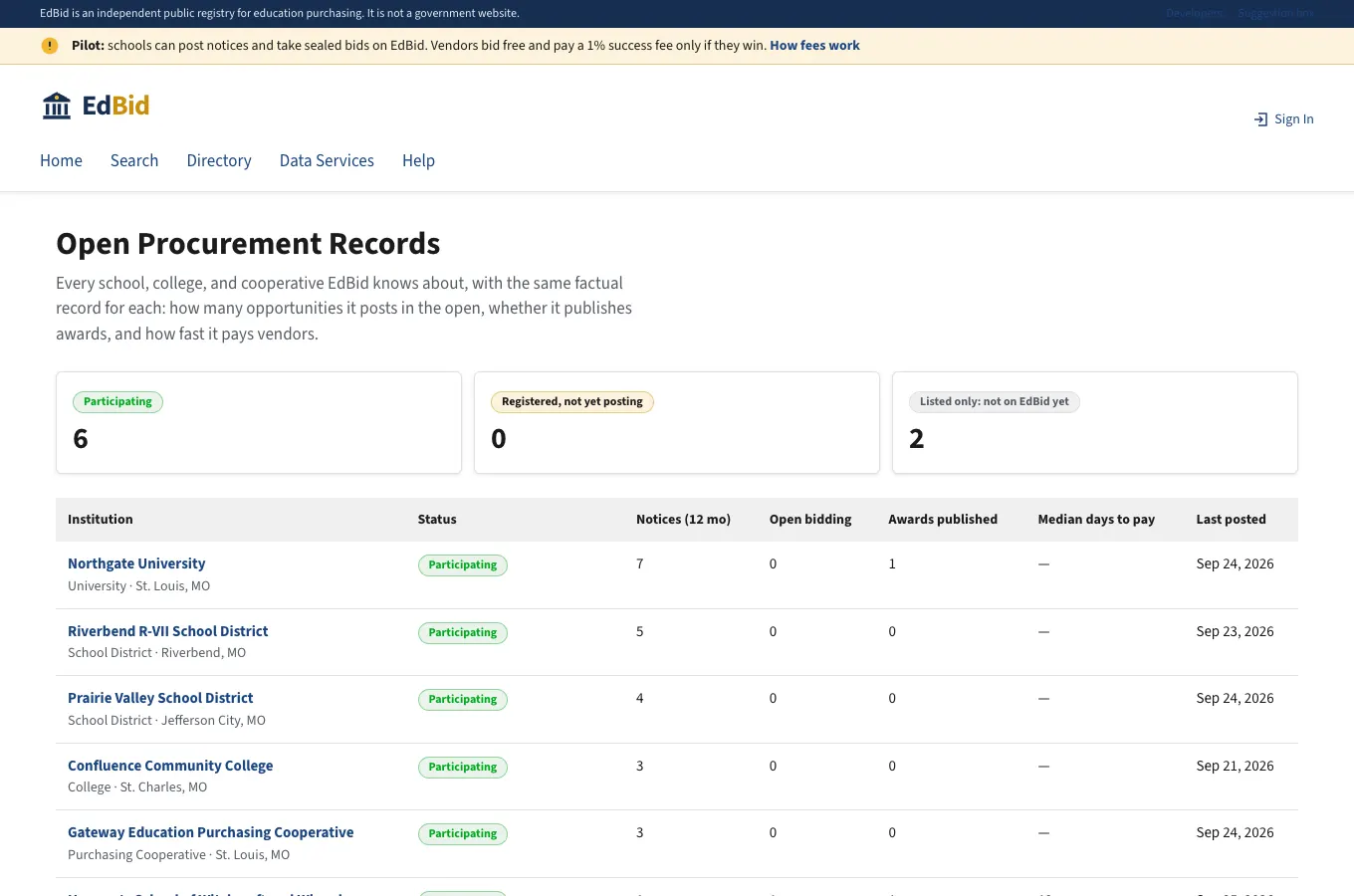
Open Procurement Records
Every known school on one page. Participating schools list first. Schools that haven't joined show as "Listed only", with no accusations: just an empty record next to peers with full ones.
I. What EdBid sees
Step 29
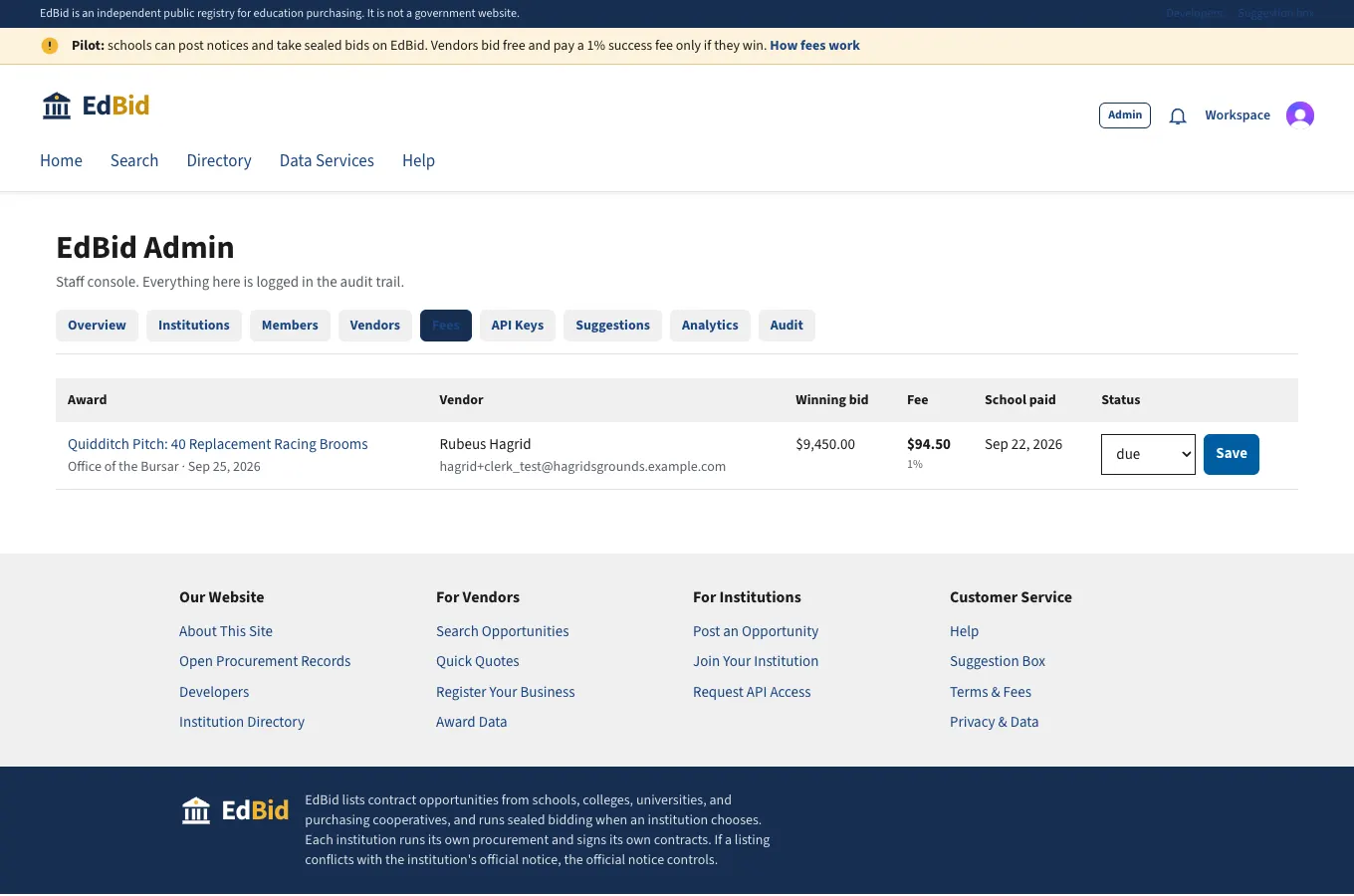
Fee ledger
Every award through EdBid bidding creates a fee: 1% of the winning bid. It moves from accrued → due (the school paid) → invoiced → paid.
Step 30
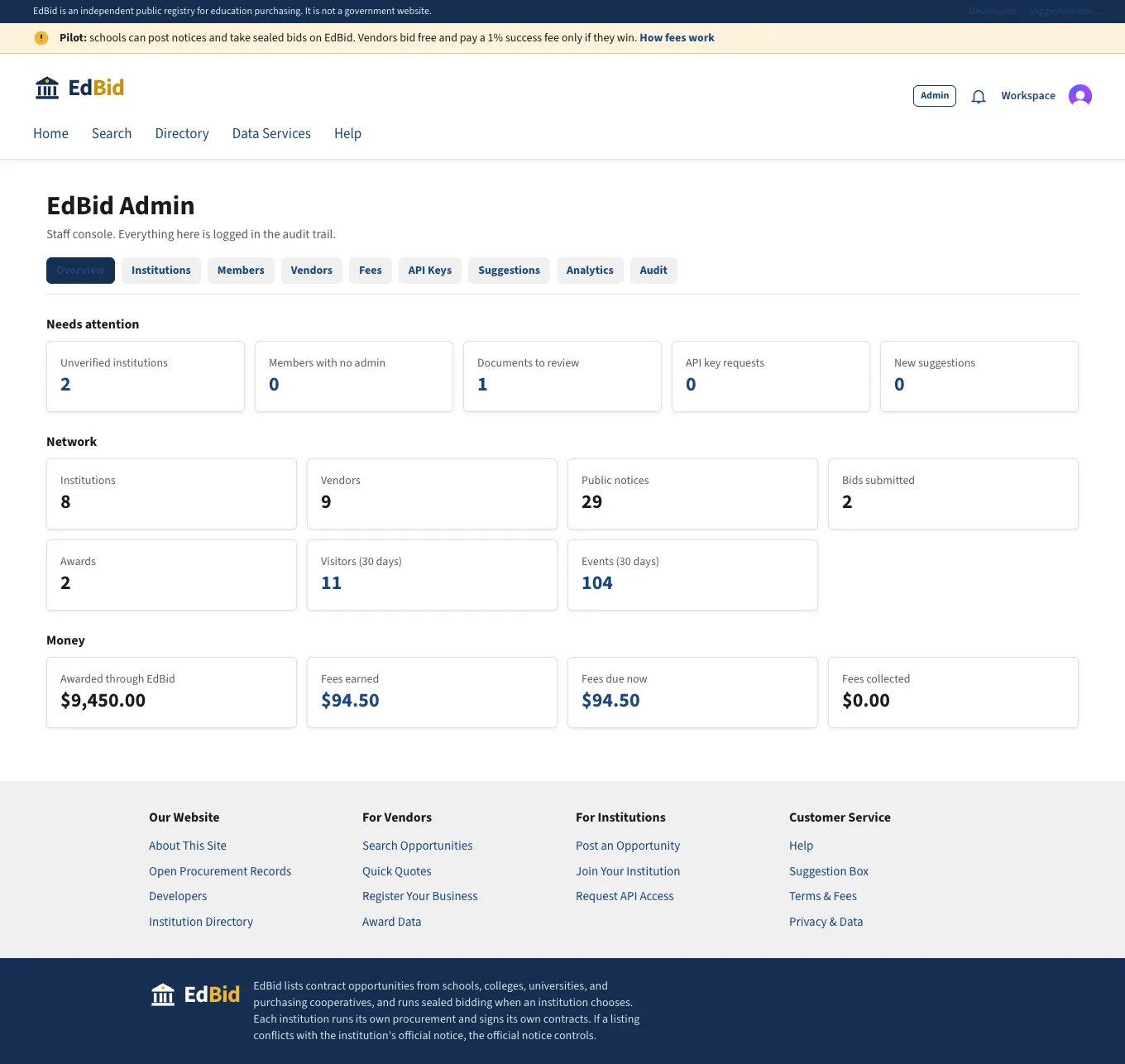
Admin overview
Work queues (unverified schools, documents, API requests, suggestions), network totals, and money.
Step 31
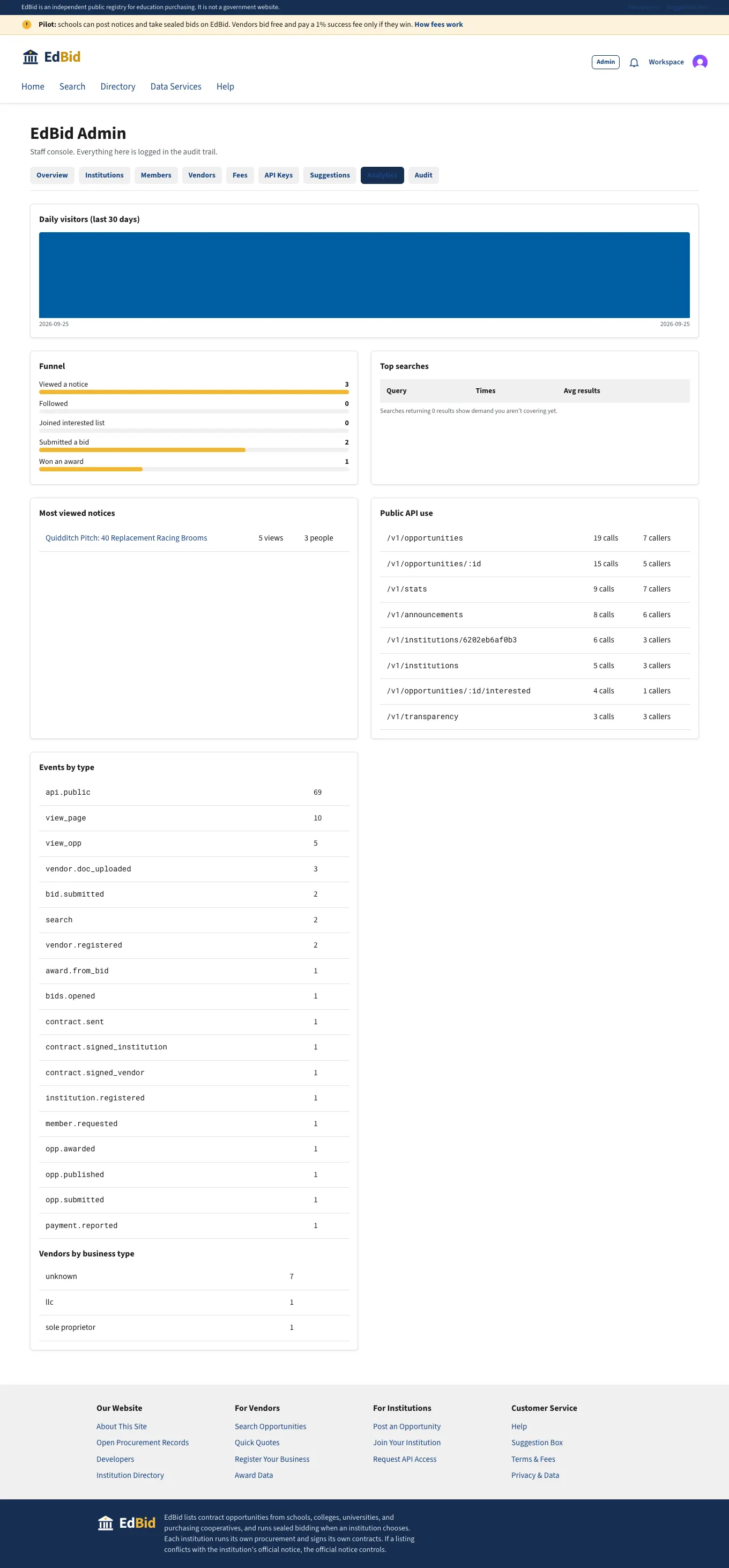
Analytics
Every search, notice view, follow, bid, and API call is recorded. Searches that return nothing show demand you aren't covering yet.
Step 32
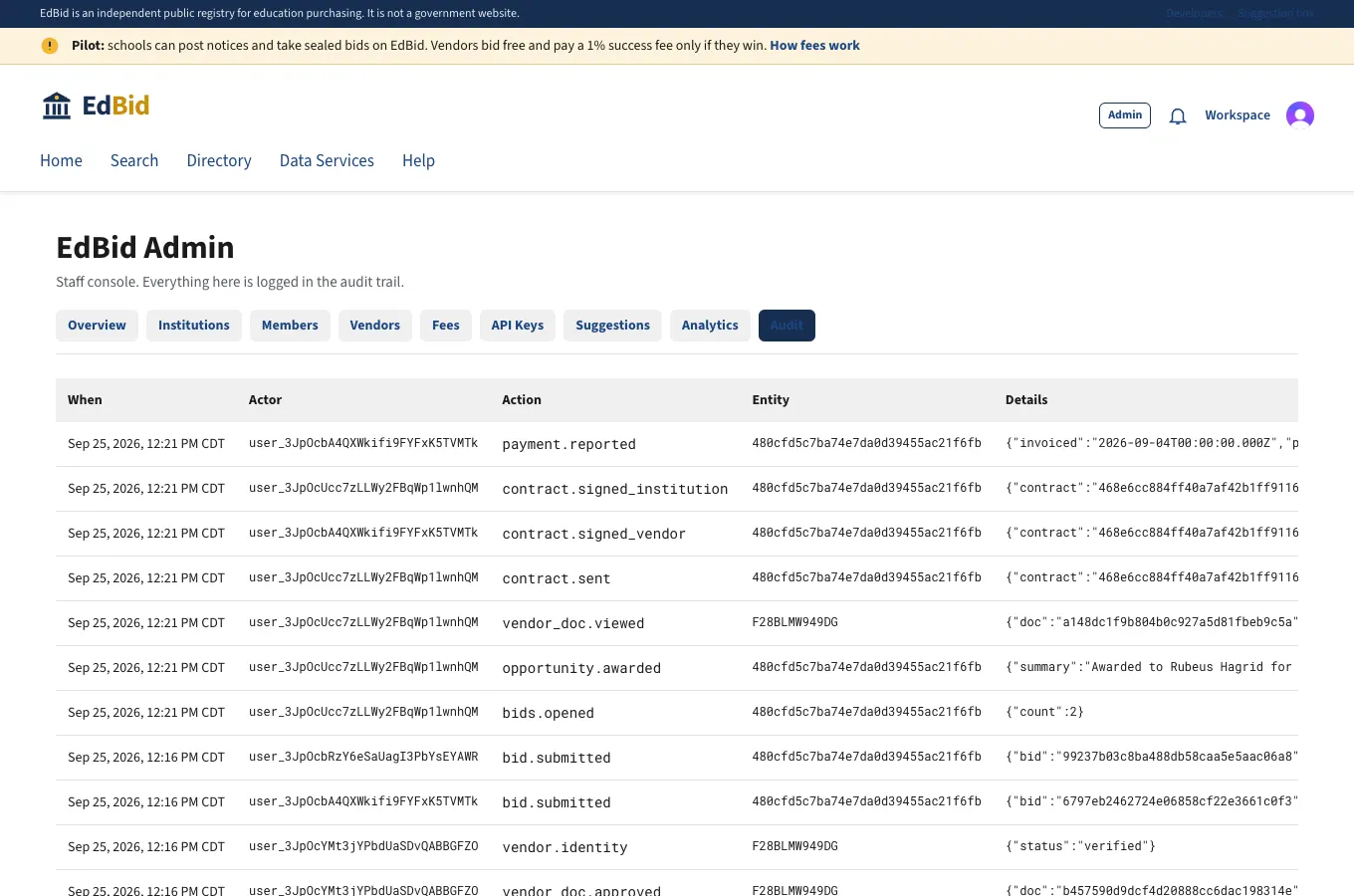
Audit trail
Append-only log of every sensitive action: bid opening, W-9 views, approvals, awards. The database refuses edits and deletes on this table.
J. Developer API
Step 33
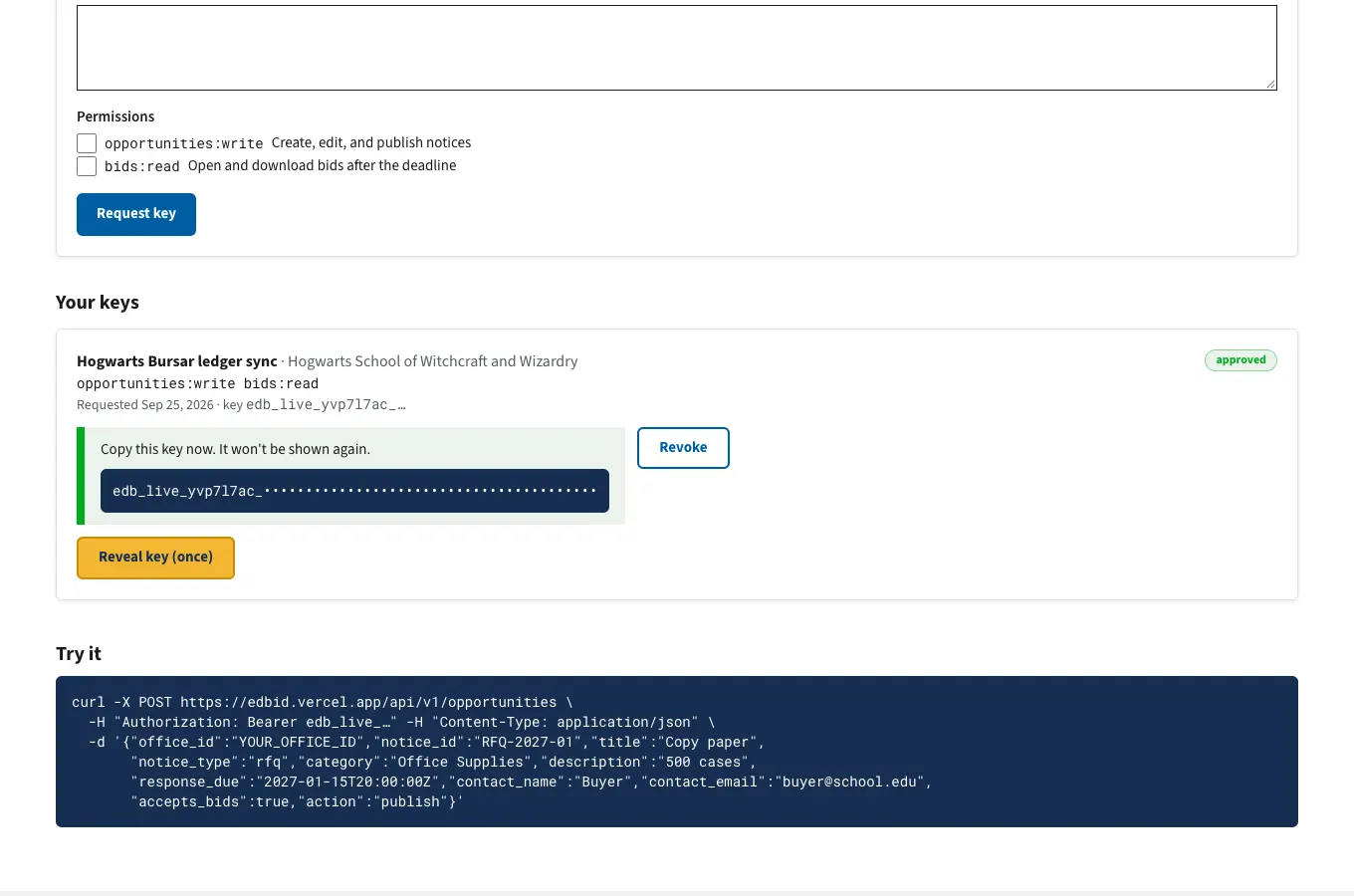
API key approved and revealed once
The school admin requested scopes. EdBid approved it after verification. The key is shown one time (masked here) and stored only as a hash.
K. Suggestion box
Step 34
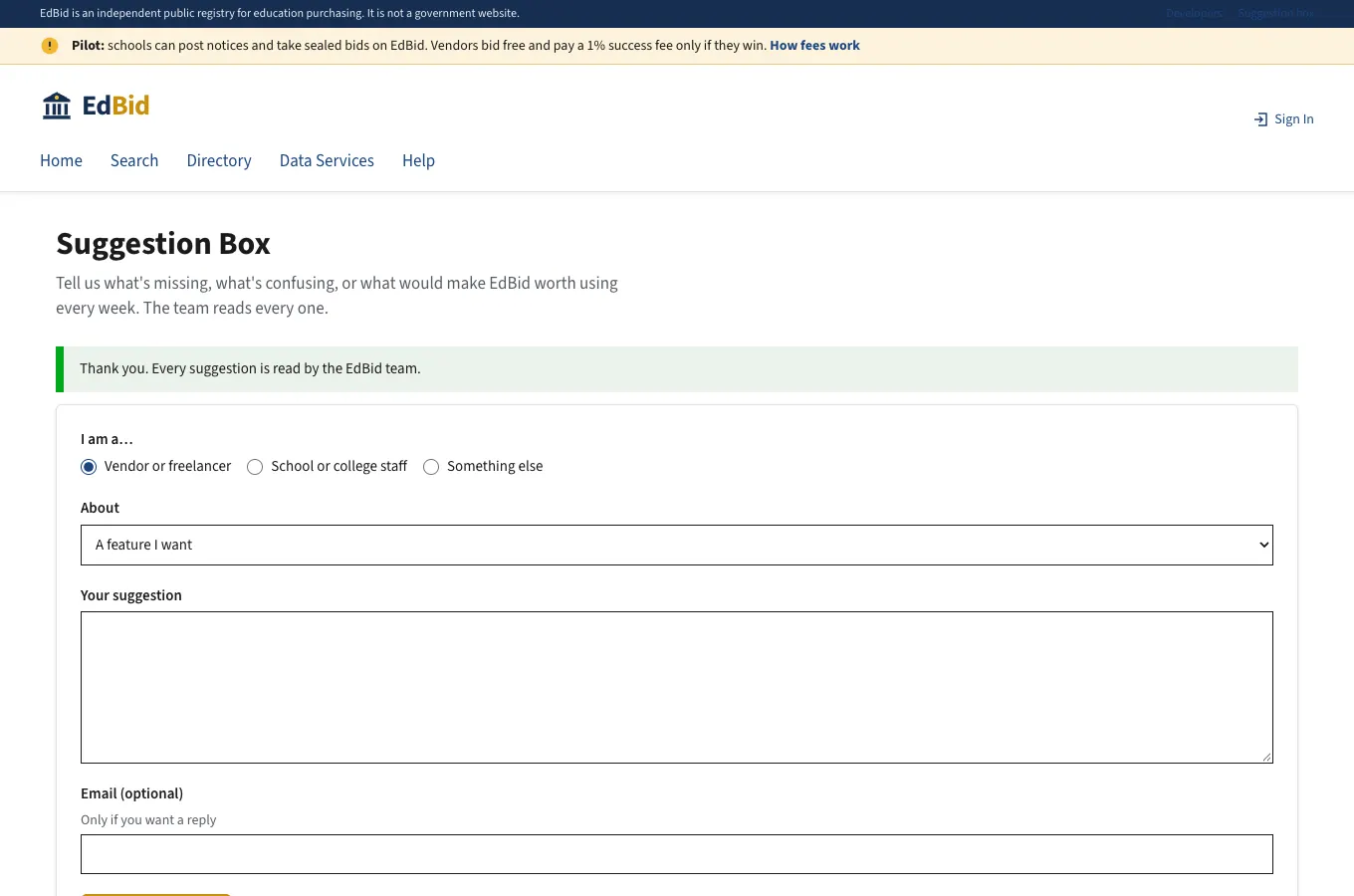
Suggestion box
Anyone can send a suggestion, signed in or not. It lands in the admin console's Suggestions queue with a status.
L. Departments, clubs, and reuse
Step 35
McGonagall adds a student club
Departments and student clubs become their own buying units. Their notices say who's buying, and each unit has its own page in the directory.

Step 36
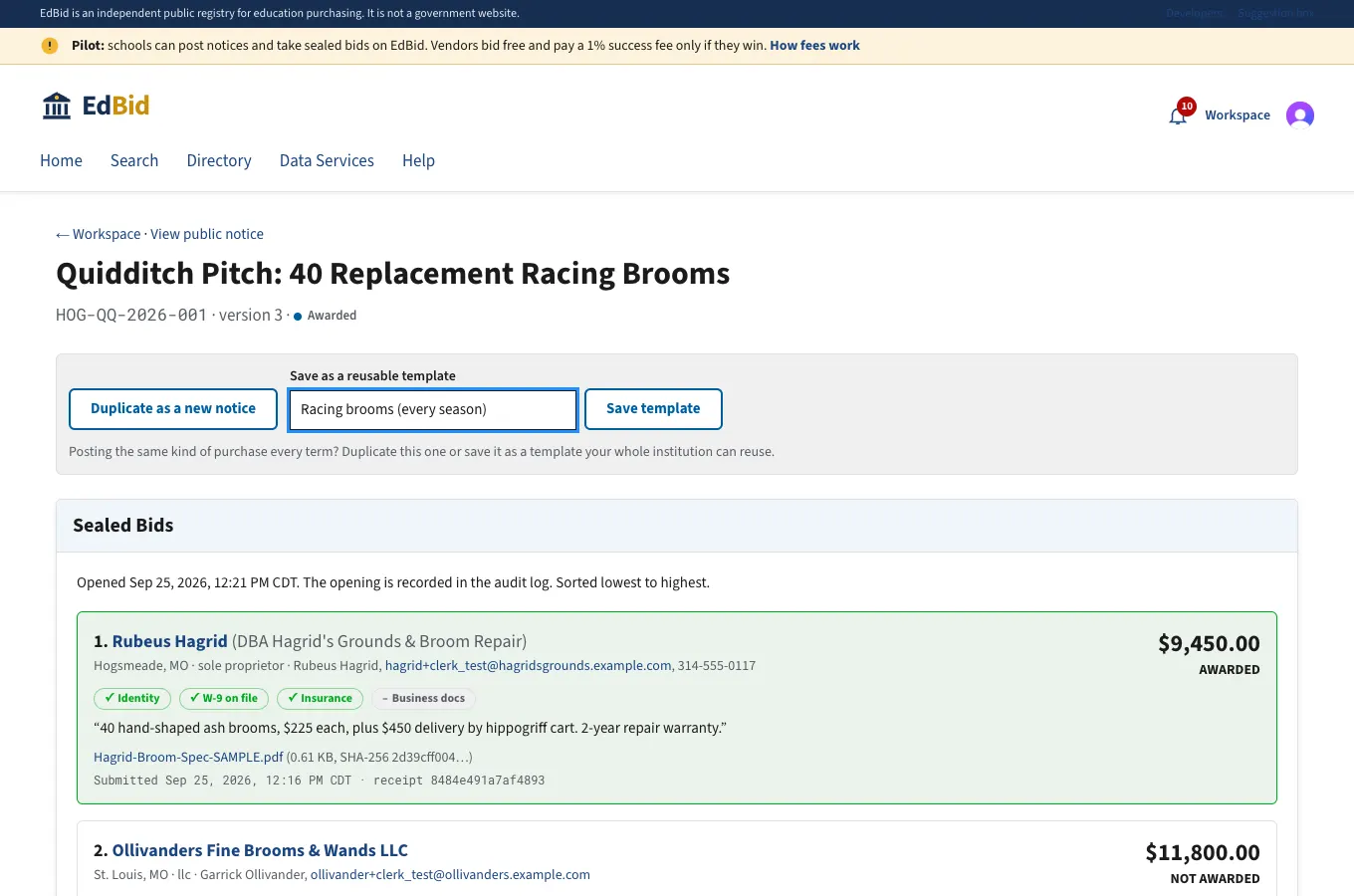
Save a notice as a template
Buying the same thing every term? Save it once. Everyone at Hogwarts, including departments and clubs, can start from it. Or duplicate it as a new notice.
Step 37
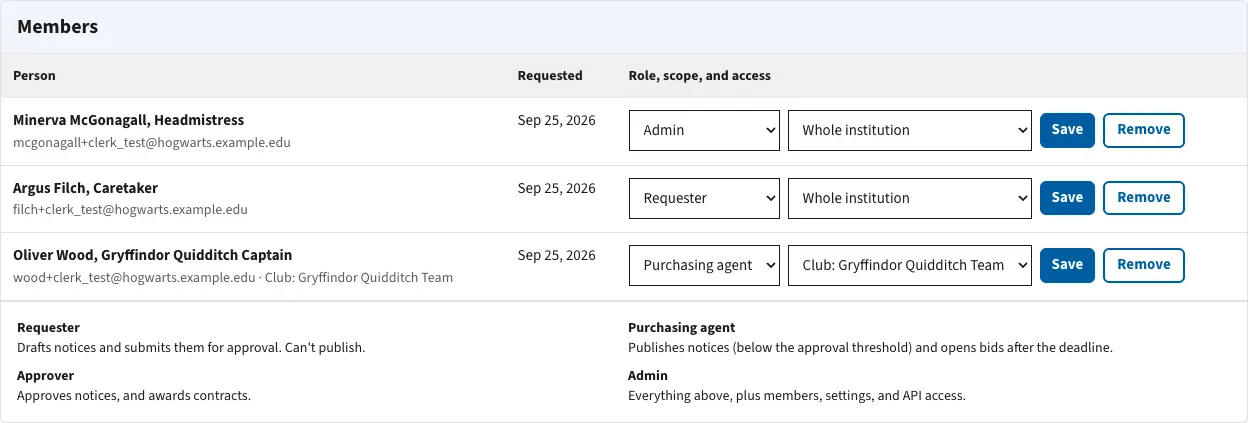
Wood is scoped to his club
A student officer gets purchasing-agent rights for the club only. He can post for the Quidditch team but not for the whole school. Anything over Hogwarts' $10,000 threshold still goes to McGonagall.
Step 38
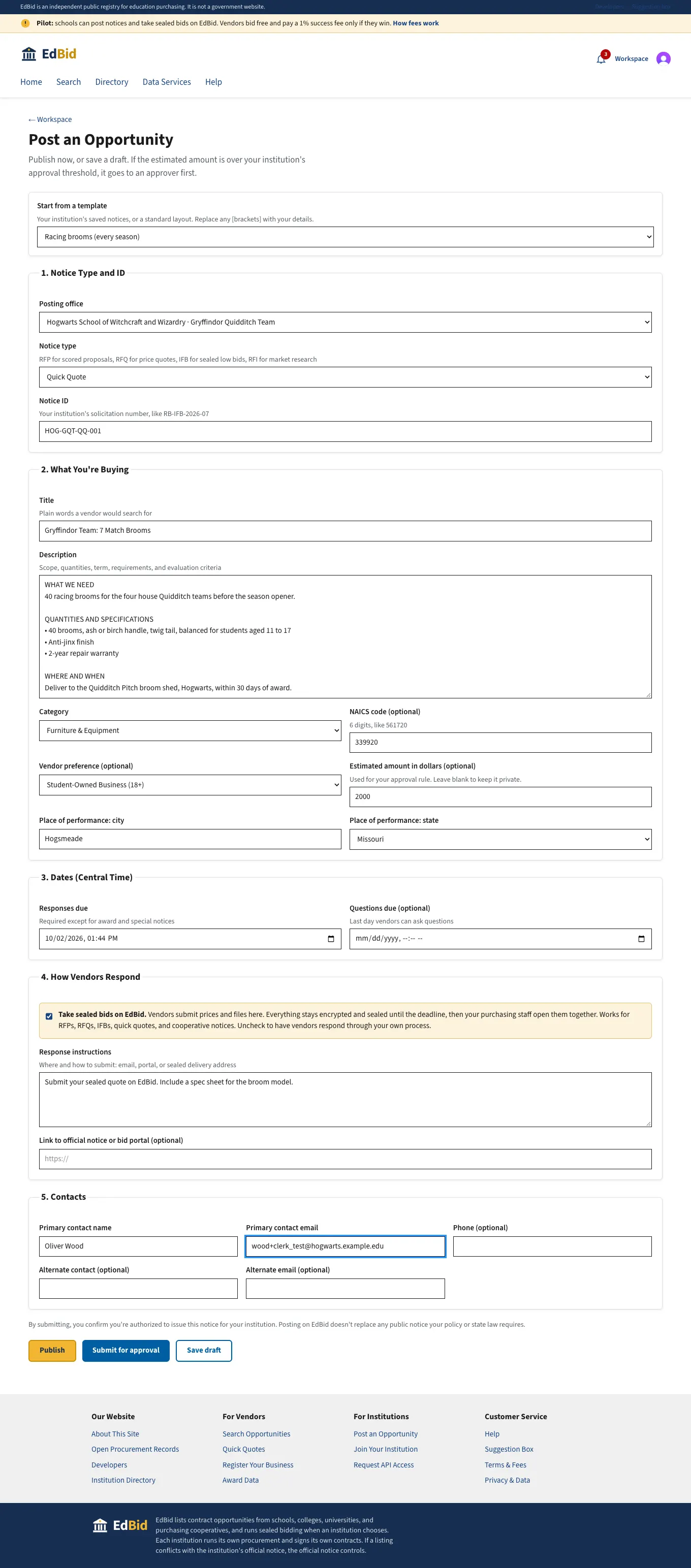
Wood posts from the saved template
One pick fills in the whole notice. He changes the quantity, sets the club as the buyer, opens it to student-owned businesses, and publishes, since it's under the approval threshold.
Step 39
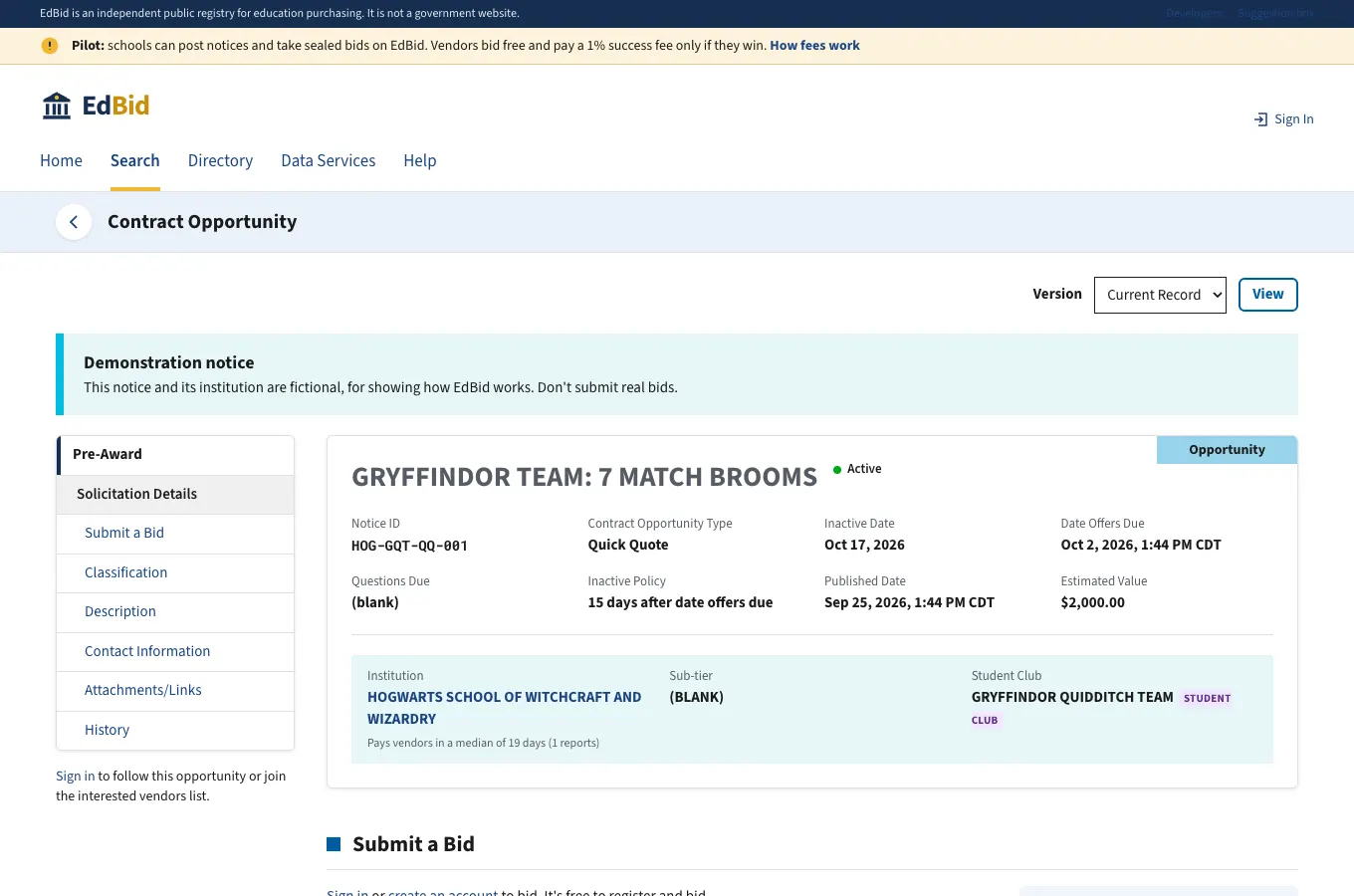
The club's public notice
The notice shows the Student Club tag, and vendors see exactly who's buying.
Step 40
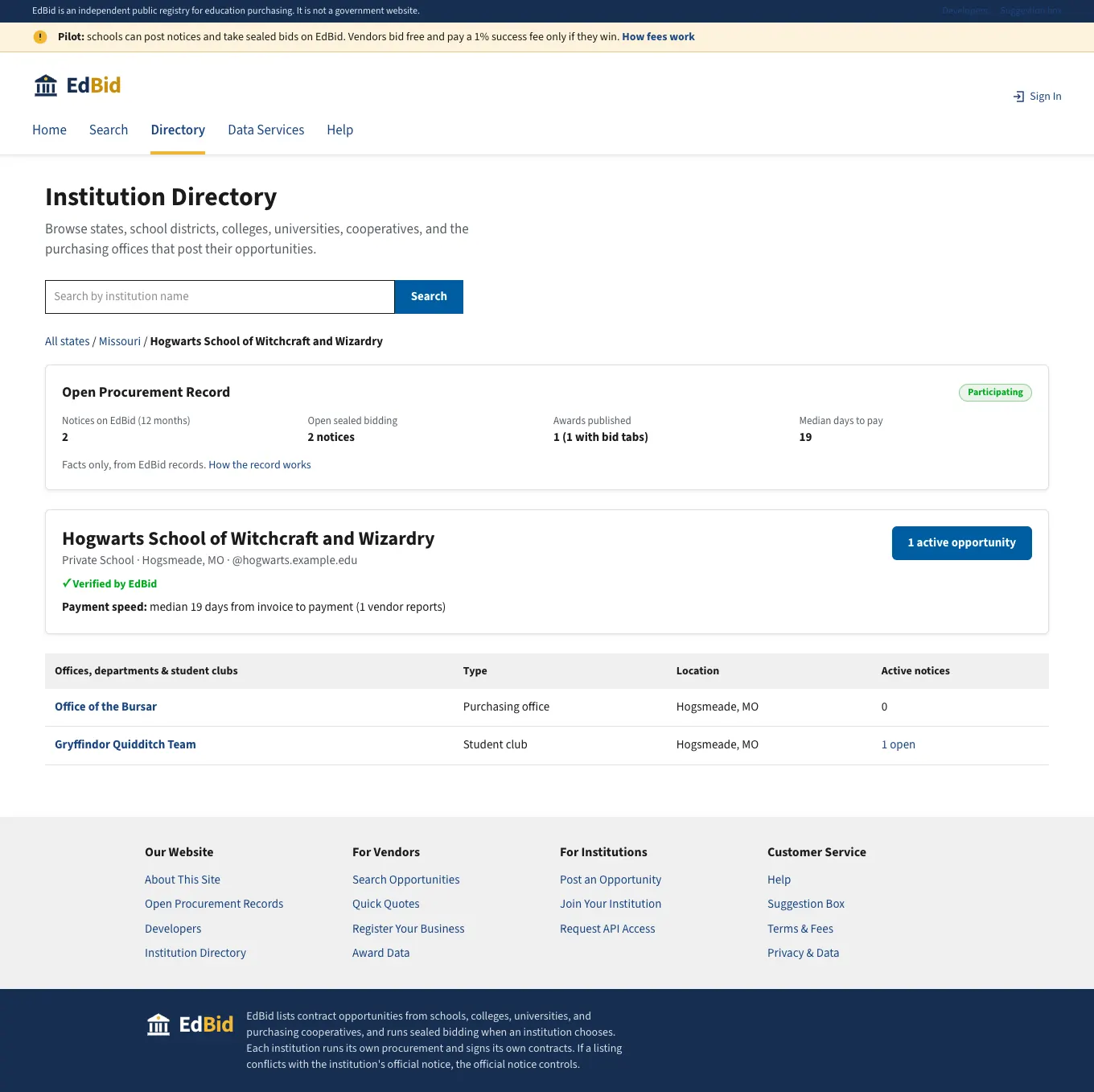
Hogwarts by department and club
The directory lists each office, department, and club with its open notices, so vendors can follow the Quidditch team or the Bursar separately.
Step 41
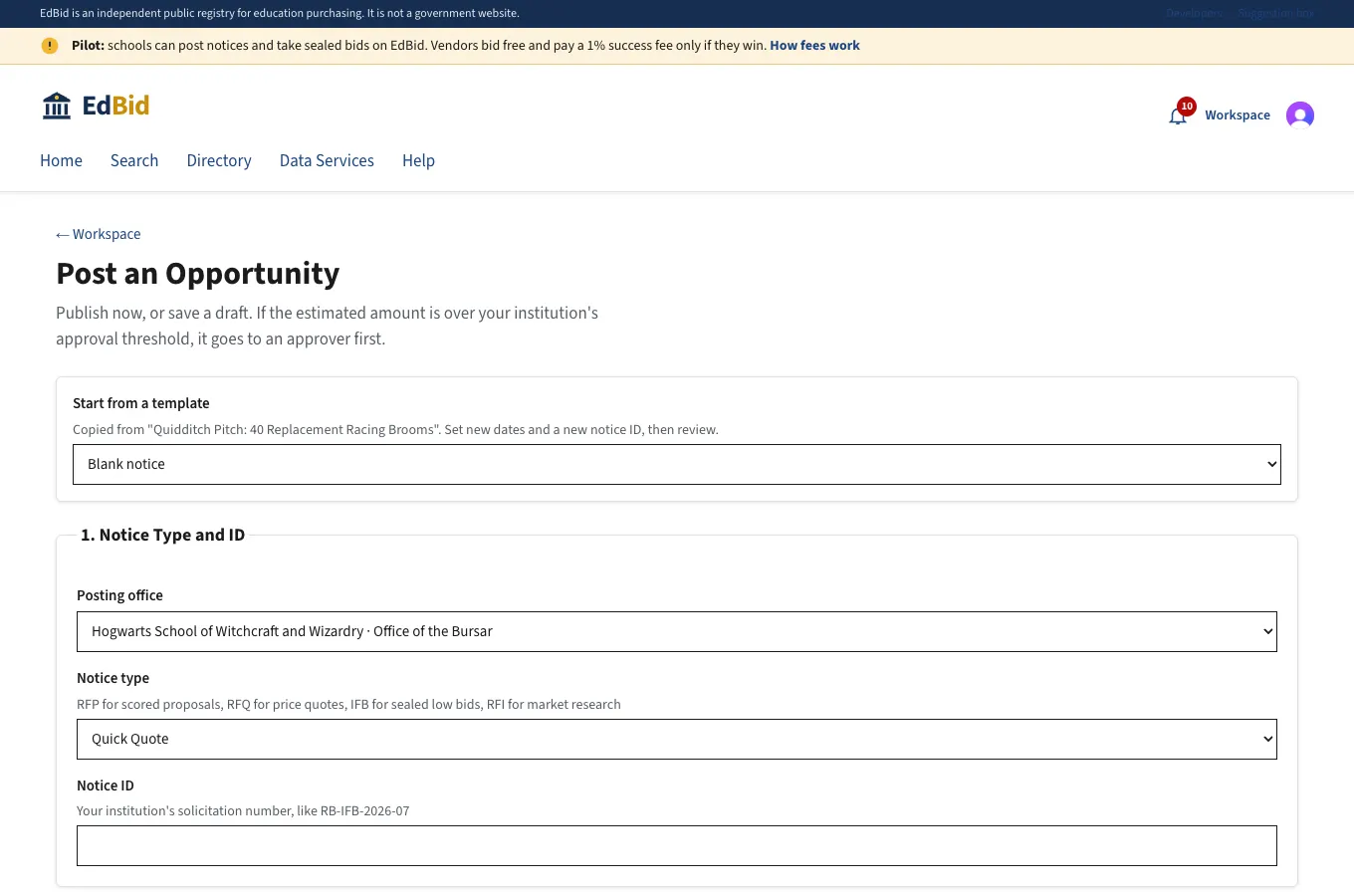
Duplicate last season's notice
"Duplicate as a new notice" copies everything except the notice ID and dates. Reposting a recurring purchase takes a minute.
Ready to try it?
Vendors: register your business for free. Schools: join your institution with your work email. Questions go in the suggestion box.